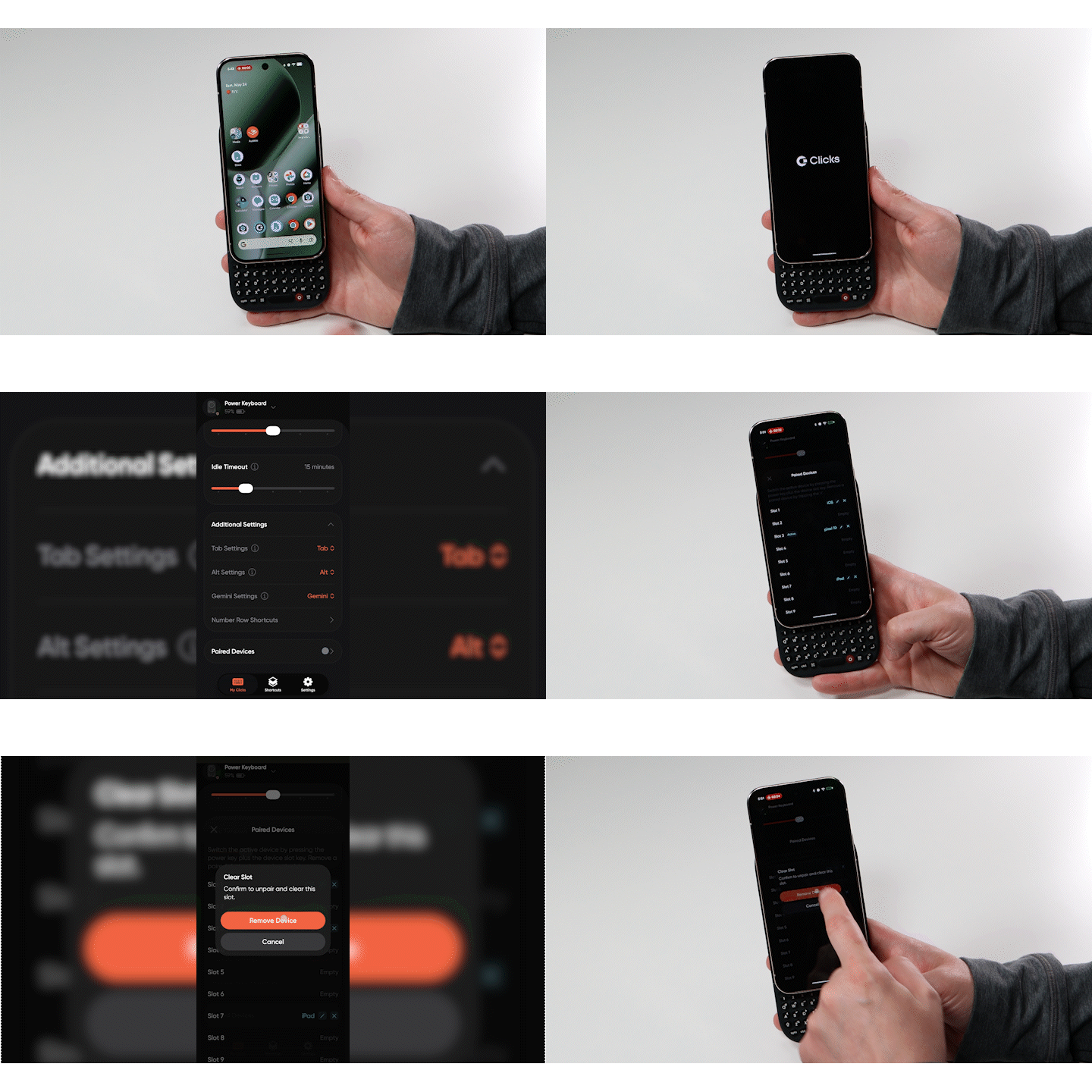
Download the Clicks app for iPhone
Install the free Clicks Keyboard app to customize settings like backlight, keyboard layout, key functions and more.
Download the Clicks app for Android
Install the free Clicks Keyboard app to customize settings like backlight, keyboard layout, key functions and more.
Download APK directly
Switch between Clicks Products
If you’re a user of Power Keyboard and a Clicks for iPhone/Android, you’ll be able to quickly switch between accessories to configure and customize.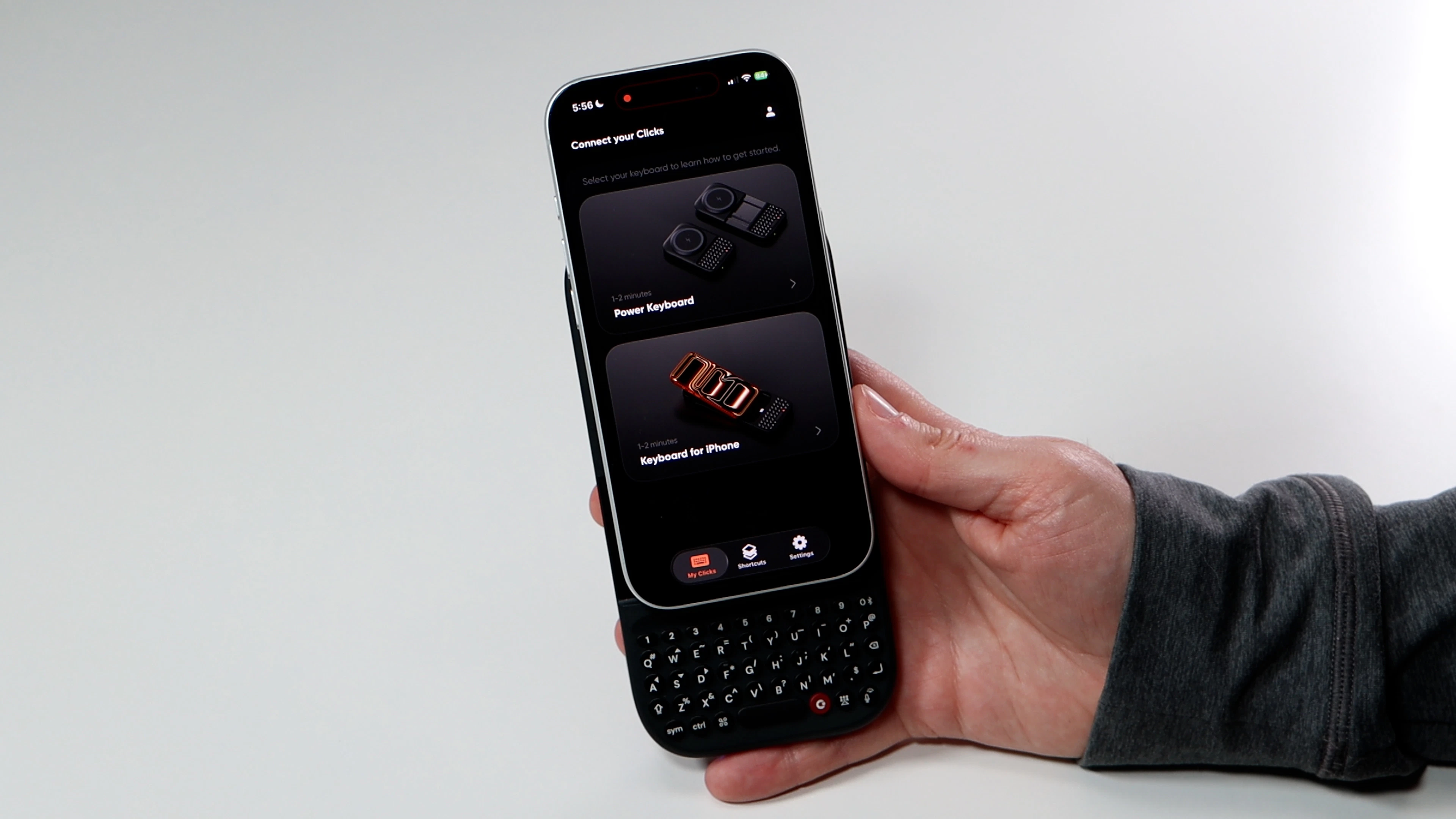
Home Screen - Once in the Power Keys section of the Clicks app you can quickly manage key functions right from the Home Screen.
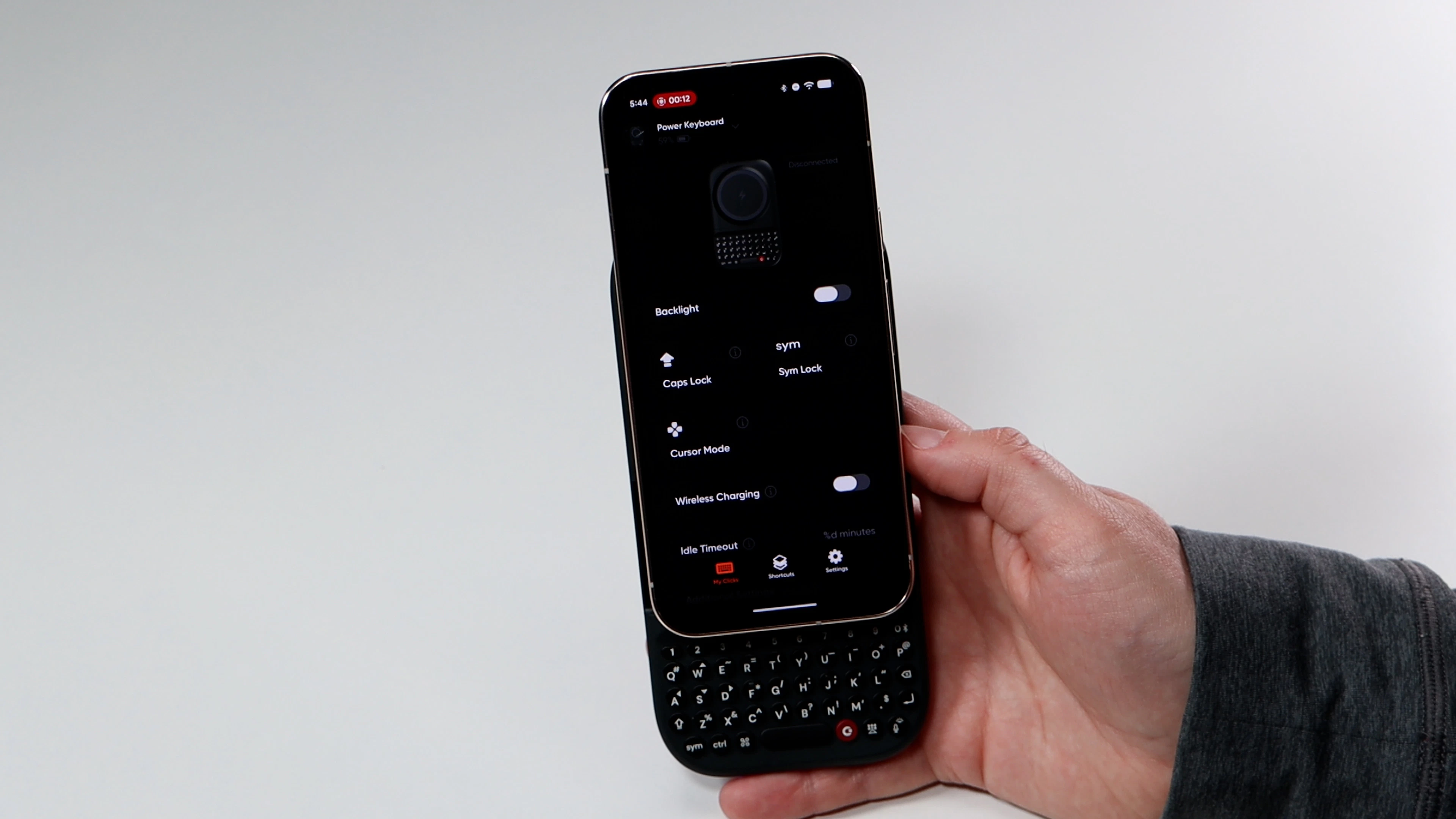
Backlight - Toggle this on to adjust the overall brightness of the backlit keys and the length of time before the lighting turns off.
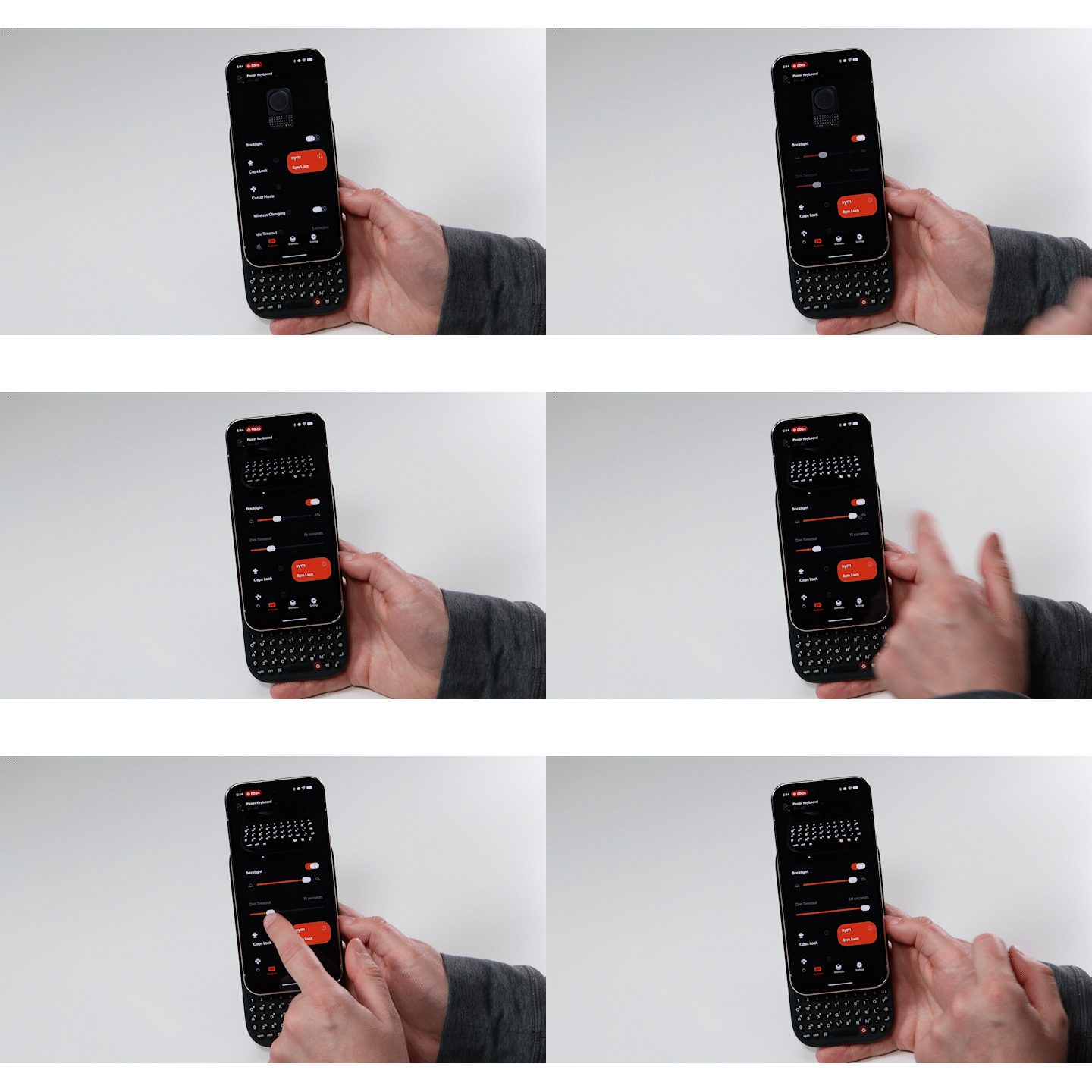
Caps Lock - Toggle this on if you’d like to enable Caps Lock on your Power Keyboard by double clicking the Shift button. Click the Shift button again to exit Caps Lock.
Sym Lock - Double click the Symbol key (sym) to lock in the second function keys. Click the Symbol key again to exit this mode.
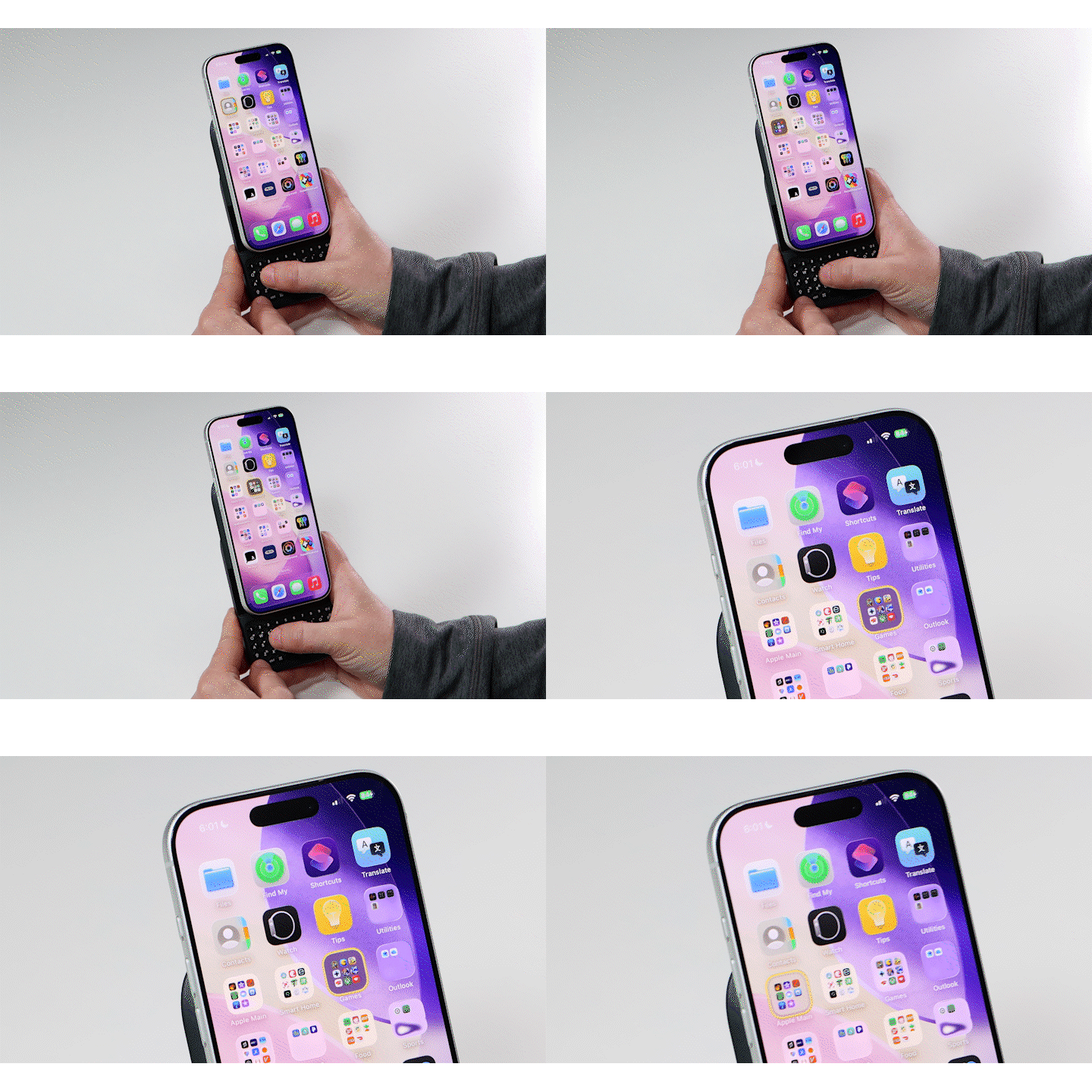
Cursor Mode - Press Symbol and Command to activate cursor mode. Enable this during instances when you want to use directional keys (WASD and IJKL) without having to press the Symbol button. Press any non navigation key (anything besides WASD and IJKL) to exit cursor mode.
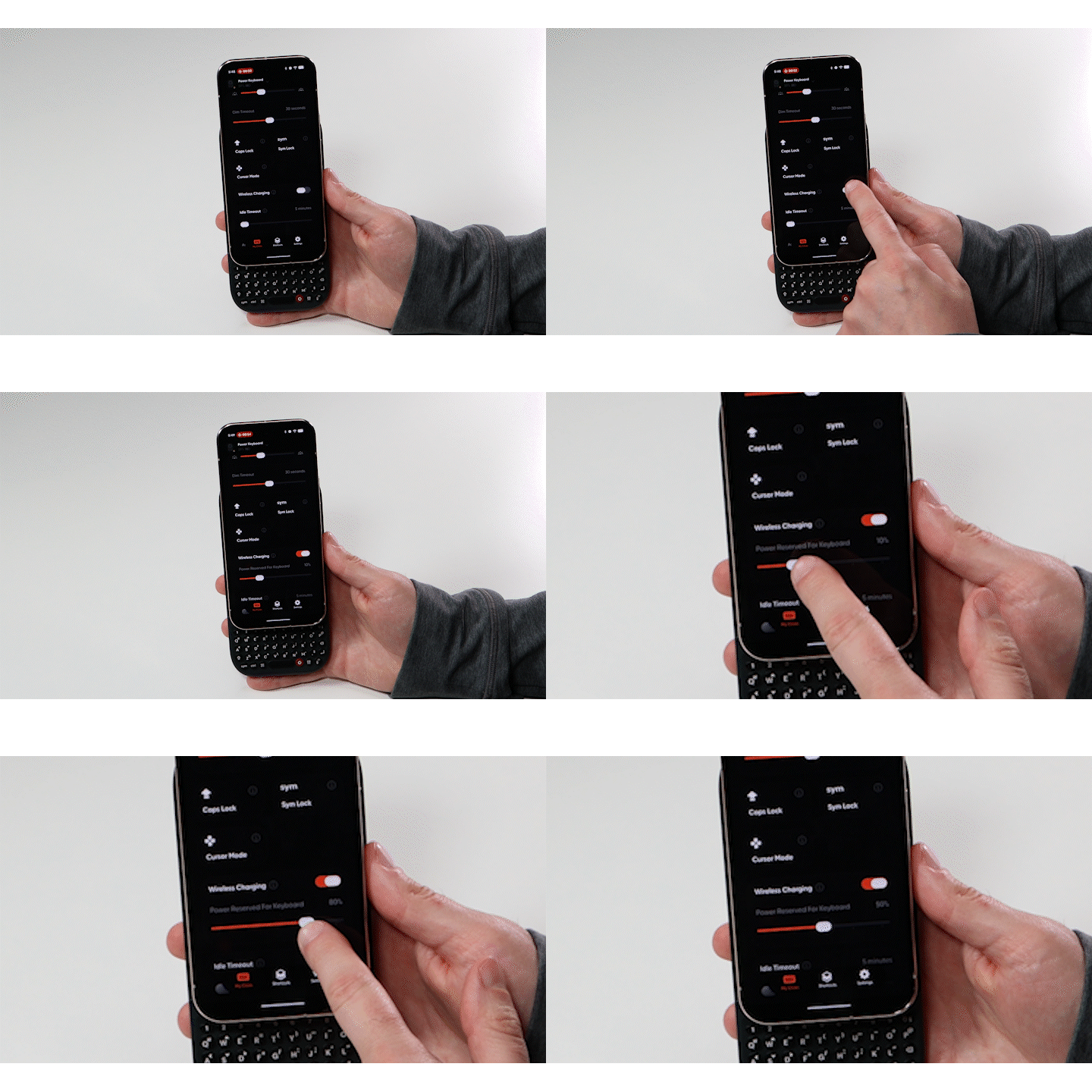
Battery Saving Mode - Adjusts when your Power Keyboard cuts off connection to your smartphone to save battery. Press any button to wake and reconnect Power Keys. Wireless Charging Toggle this tab on or off to enable/disable wireless charging
- When wireless charging is enabled, you can drag the slider to adjust how much of the Power Keyboard battery remains in “reserve” for the accessory. When the battery level hits your reserve number, wireless charging automatically turns off to preserve battery life for the Power Keyboard. If you don’t want to reserve any power for the keyboard, set the slider to 0.
- By default, 500 mAh of the keyboard’s battery is held in reserve for your Power Keyboard. However, this reserve can be adjusted (all the way down to 0) using the Clicks app.
- Keyboard Layout - Switch the keyboard layout to accommodate different language formats.
- Currency Symbol - Adjust the currency symbol from $ to your local currency.
- Backlight Shortcut - Quickly turn on/off Backlight on Power Keys.
- Soft Return - Change the result of pressing the Return key to send vs. moving the cursor to a new line.
- Display Keyboard Mode in Dynamic Island - For iPhone users, the current settings of your Power Keyboard will be visible on your phone’s dynamic island.
- See the complete list of paired devices and the slot they’re dedicated to
- Tap on the edit icon to change the name of any device
- Tap on the X to Clear a slot, removing a device