> ## Documentation Index
> Fetch the complete documentation index at: https://learn.clicks.tech/llms.txt
> Use this file to discover all available pages before exploring further.
# Typing in Two Tongues: Guide to a Multilingual Clicks for iPhone
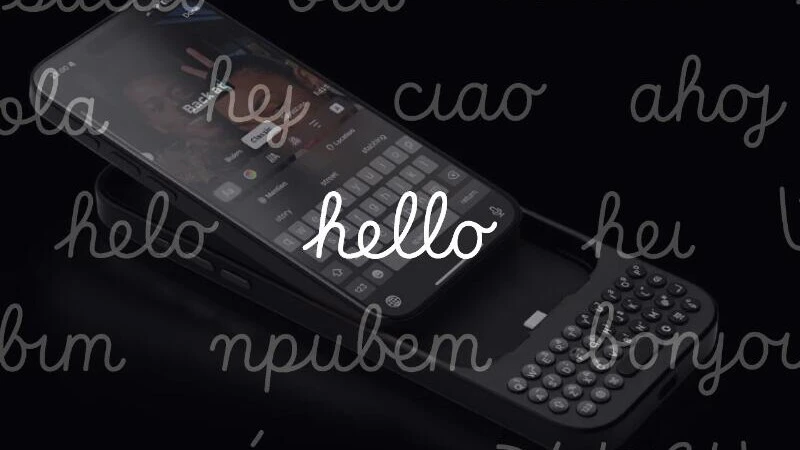 Clicks is designed to bring back the tactile joy of typing, and why should that stop when typing in languages other than English! Whether you're chatting with family in Spanish, texting friends in French, or switching between English and German for work - let Clicks for iPhone keep up with your multilingual world.
Adding new languages to your Clicks setup is your first stop, and it's easier than you think.
## Mission Objective: Add a new language to your keyboard list
Clicks is designed to bring back the tactile joy of typing, and why should that stop when typing in languages other than English! Whether you're chatting with family in Spanish, texting friends in French, or switching between English and German for work - let Clicks for iPhone keep up with your multilingual world.
Adding new languages to your Clicks setup is your first stop, and it's easier than you think.
## Mission Objective: Add a new language to your keyboard list
 Here's your quest log:
Open Settings on your iPhone
Navigate to *General > Keyboard > Keyboards*
Tap "Add New Keyboard"
**Choose wisely!** When you pick your language, make sure you select the QWERTY layout version. Why? Because Clicks was trained in the ways of QWERTY. Choose another layout like AZERTY or QWERTZ and… well, let's just say your keys might start speaking a different dialect!
Once you've got your languages in the arsenal, swapping between them mid-type is a breeze. Just hit the Globe 🌐 key on your Clicks keyboard and cycle through the list of languages.
**Pro Tip:** You'll see the language switch pop up on screen - no guesswork needed.
## Unlocking Hidden Characters: Accents and Symbols
Here's your quest log:
Open Settings on your iPhone
Navigate to *General > Keyboard > Keyboards*
Tap "Add New Keyboard"
**Choose wisely!** When you pick your language, make sure you select the QWERTY layout version. Why? Because Clicks was trained in the ways of QWERTY. Choose another layout like AZERTY or QWERTZ and… well, let's just say your keys might start speaking a different dialect!
Once you've got your languages in the arsenal, swapping between them mid-type is a breeze. Just hit the Globe 🌐 key on your Clicks keyboard and cycle through the list of languages.
**Pro Tip:** You'll see the language switch pop up on screen - no guesswork needed.
## Unlocking Hidden Characters: Accents and Symbols
 When it's time to drop an é, ü, å, or any other special character, Clicks has a hidden move just for you. Here's how to activate special characters:
Press and hold the base letter key (for example, hold down "e")
A pop-up menu will appear - your special character selection screen!
You can either:
\- Tap the special letter you need directly on-screen - Press the associated number key on your Clicks to pick the matching character in the list
Quick, smooth, and built right into your flow - so you can stay in the zone without breaking stride.
**Pro Tip:** This works in most apps where the iOS keyboard supports character variants, so don't be afraid to try it wherever you type.
## Optimising Layout and Key Mapping (Important!)
When it's time to drop an é, ü, å, or any other special character, Clicks has a hidden move just for you. Here's how to activate special characters:
Press and hold the base letter key (for example, hold down "e")
A pop-up menu will appear - your special character selection screen!
You can either:
\- Tap the special letter you need directly on-screen - Press the associated number key on your Clicks to pick the matching character in the list
Quick, smooth, and built right into your flow - so you can stay in the zone without breaking stride.
**Pro Tip:** This works in most apps where the iOS keyboard supports character variants, so don't be afraid to try it wherever you type.
## Optimising Layout and Key Mapping (Important!)
 🧭 Switch Your Hardware Keyboard to the "ABC" Format
Think of this as tuning your controls.
Head to: *Settings > General > Keyboard > Hardware Keyboard*
Then select the "ABC" layout for your chosen language.
This helps align key behavior and smooths out any misalignment.
**Pro Tip:** This step is especially helpful for making sure punctuation matches what's printed on your Clicks Keyboard.
## Don't Skip the Clicks App!
🧭 Switch Your Hardware Keyboard to the "ABC" Format
Think of this as tuning your controls.
Head to: *Settings > General > Keyboard > Hardware Keyboard*
Then select the "ABC" layout for your chosen language.
This helps align key behavior and smooths out any misalignment.
**Pro Tip:** This step is especially helpful for making sure punctuation matches what's printed on your Clicks Keyboard.
## Don't Skip the Clicks App!
 The Clicks App is your control center.
It keeps your firmware up to date, unlocks new features, and helps us send cool stuff your way as we build it. Download it from the App Store and make sure you're always running the latest version of Clicks.
We recommend keeping the Keyboard Layout in the app set to US - this also helps ensure all characters match what's printed on your Clicks Keyboard.
**Pro Tip:** You can even swap out the default \$ key for your local currency symbol!
While Clicks opens up a world of languages, the experience may not be perfect across the board - There's only so much one can do with a US English keyboard within iOS limitations, but we're always here to help. If you run into any issues, reach out to us at support @ clicks.tech and we'll do our best to get things sorted.
### Read more
Learn what's new in the Clicks Keyboard for iPhone 17. Available for the iPhone 17, 17 Pro and 17 Pro Max.
Learn how to customize your keyboard to play playlists, ID songs and enable wired CarPlay Whether you're getting into a flow state to tackle some deep work, about to hit the gym to break a sweat, or are heading out in the car, great tunes can make all the difference. Using Clicks Mode together with keyboard shortcuts can help you take control over your music at home, on the go and in...
By mapping Apple Shortcuts to my Clicks Keyboard I was able to create time-saving routines that help me save time and stay focused I was diagnosed with ADHD at 37 years old. Systems, processes and routines have become key to helping me stay in control, keeping focused and taking action…theoretically! But as one of the founding team members of Clicks I've traveled over 100,000 miles...
Discover what's new in the Clicks Keyboard for the iPhone 16.
The Clicks App is your control center.
It keeps your firmware up to date, unlocks new features, and helps us send cool stuff your way as we build it. Download it from the App Store and make sure you're always running the latest version of Clicks.
We recommend keeping the Keyboard Layout in the app set to US - this also helps ensure all characters match what's printed on your Clicks Keyboard.
**Pro Tip:** You can even swap out the default \$ key for your local currency symbol!
While Clicks opens up a world of languages, the experience may not be perfect across the board - There's only so much one can do with a US English keyboard within iOS limitations, but we're always here to help. If you run into any issues, reach out to us at support @ clicks.tech and we'll do our best to get things sorted.
### Read more
Learn what's new in the Clicks Keyboard for iPhone 17. Available for the iPhone 17, 17 Pro and 17 Pro Max.
Learn how to customize your keyboard to play playlists, ID songs and enable wired CarPlay Whether you're getting into a flow state to tackle some deep work, about to hit the gym to break a sweat, or are heading out in the car, great tunes can make all the difference. Using Clicks Mode together with keyboard shortcuts can help you take control over your music at home, on the go and in...
By mapping Apple Shortcuts to my Clicks Keyboard I was able to create time-saving routines that help me save time and stay focused I was diagnosed with ADHD at 37 years old. Systems, processes and routines have become key to helping me stay in control, keeping focused and taking action…theoretically! But as one of the founding team members of Clicks I've traveled over 100,000 miles...
Discover what's new in the Clicks Keyboard for the iPhone 16.