> ## Documentation Index
> Fetch the complete documentation index at: https://learn.clicks.tech/llms.txt
> Use this file to discover all available pages before exploring further.
# Navigate your iPhone with iOS Keyboard Shortcuts
 ## What you'll learn in this article:
* What are keyboard shortcuts
* How to use iOS keyboard shortcuts with Clicks
* Learn helpful keyboard shortcuts that work with Clicks in your favorite apps
One of the benefits of a hardware keyboard is that you can use combination keystrokes (known as keyboard shortcuts) to quickly navigate your phone and move through apps that would normally take multiple swipes and taps to complete.
With Clicks you will find that many of the keyboard shortcuts you use on your Mac or iPad Magic Keyboard work on your iPhone.
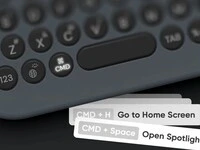
Many keyboard shortcuts involve holding the CMD key (next to the space bar) while pressing another key to invoke the shortcut.
## 1. Global iOS Shortcuts
Here are some popular and handy shortcuts that work across your iPhone.
| Shortcut | Hold | Press |
| :------------------------------- | :--- | :------- |
| Return to the home screen | CMD | H |
| Launch Spotlight search | CMD | Spacebar |
| Show notifications | 🌐 | N |
| Open command center | 🌐 | C |
| Copy highlighted text | CMD | C |
| Cut highlighted text | CMD | X |
| Paste text at a cursor location | CMD | V |
| Unlock phone & go to home screen | CMD | Spacebar |
## 2. iOS App Specific Shortcuts
Here are some popular and handy shortcuts that work across your iPhone.
| Application | Shortcut | Hold | Press |
| :------------------ | :--------------------------------------- | :---- | :-------- |
| **Safari** | Scroll down web page | | Spacebar |
| | Scroll up web page | Shift | Spacebar |
| | Open new tab | CMD | N |
| | Close current tab | CMD | W |
| | Open history | CMD | Y |
| | Share page via email | CMD | I |
| | Find on page | CMD | F |
| | Refresh page | CMD | R |
| | Bookmark page | CMD | D |
| **Messages** | Compose new message | CMD | N |
| | Reply to last message | CMD | R |
| | Respond with emphasis | CMD | T |
| | Edit last sent iMessage | CMD | E |
| | Show contact information | CMD | I |
| **Mail** | Compose a new email (from inbox) | CMD | N |
| | Delete current email (within an email) | | Backspace |
| | Reply to current email (within an email) | CMD | R |
| | Select all | CMD | A |
| **Voice Recording** | Start a new voice recording | CMD | N |
| | Stop & save voice recording | CMD | S |
| **iMovie** | Start/stop video clip playback | | Spacebar |
| | Split clip | CMD | B |
| | Rotate clip | CMD | R |
| **Photos** | Enter editing mode | | Return |
| **Music** | Search for music | CMD | F |
| | Create a new playlist | CMD | N |
Clicks also supports keyboard shortcuts that will work with many of your favorite third party apps.
## Take your shortcut superpowers to the next level with Clicks Mode
The above shortcuts are all baked into iOS by default. By configuring Clicks Mode on your iPhone you can customize the 36 buttons on your keyboard to enable even more shortcuts, commands and automations. Learn how here.
### Read more
The Clicks Keyboard for Android is here. Learn how to use keyboard shortcuts to launch apps and navigate your Android phone.
The 36 buttons on your Clicks Keyboard can be used for so much more than just typing. By enabling Clicks Mode to work with iOS Shortcuts, you can use the buttons on your Clicks Keyboard to quickly launch apps, trigger workflows or take actions you perform frequently
With just a bit of practice your thumbs will feel right at home, typing with confidence and unlocking new iPhone features only available with a keyboard.
Everyone types a little differently. That’s why your Clicks Keyboard gives you ways to tailor your typing experience to your personal preferences.
## What you'll learn in this article:
* What are keyboard shortcuts
* How to use iOS keyboard shortcuts with Clicks
* Learn helpful keyboard shortcuts that work with Clicks in your favorite apps
One of the benefits of a hardware keyboard is that you can use combination keystrokes (known as keyboard shortcuts) to quickly navigate your phone and move through apps that would normally take multiple swipes and taps to complete.
With Clicks you will find that many of the keyboard shortcuts you use on your Mac or iPad Magic Keyboard work on your iPhone.
Many keyboard shortcuts involve holding the CMD key (next to the space bar) while pressing another key to invoke the shortcut.
## 1. Global iOS Shortcuts
Here are some popular and handy shortcuts that work across your iPhone.
| Shortcut | Hold | Press |
| :------------------------------- | :--- | :------- |
| Return to the home screen | CMD | H |
| Launch Spotlight search | CMD | Spacebar |
| Show notifications | 🌐 | N |
| Open command center | 🌐 | C |
| Copy highlighted text | CMD | C |
| Cut highlighted text | CMD | X |
| Paste text at a cursor location | CMD | V |
| Unlock phone & go to home screen | CMD | Spacebar |
## 2. iOS App Specific Shortcuts
Here are some popular and handy shortcuts that work across your iPhone.
| Application | Shortcut | Hold | Press |
| :------------------ | :--------------------------------------- | :---- | :-------- |
| **Safari** | Scroll down web page | | Spacebar |
| | Scroll up web page | Shift | Spacebar |
| | Open new tab | CMD | N |
| | Close current tab | CMD | W |
| | Open history | CMD | Y |
| | Share page via email | CMD | I |
| | Find on page | CMD | F |
| | Refresh page | CMD | R |
| | Bookmark page | CMD | D |
| **Messages** | Compose new message | CMD | N |
| | Reply to last message | CMD | R |
| | Respond with emphasis | CMD | T |
| | Edit last sent iMessage | CMD | E |
| | Show contact information | CMD | I |
| **Mail** | Compose a new email (from inbox) | CMD | N |
| | Delete current email (within an email) | | Backspace |
| | Reply to current email (within an email) | CMD | R |
| | Select all | CMD | A |
| **Voice Recording** | Start a new voice recording | CMD | N |
| | Stop & save voice recording | CMD | S |
| **iMovie** | Start/stop video clip playback | | Spacebar |
| | Split clip | CMD | B |
| | Rotate clip | CMD | R |
| **Photos** | Enter editing mode | | Return |
| **Music** | Search for music | CMD | F |
| | Create a new playlist | CMD | N |
Clicks also supports keyboard shortcuts that will work with many of your favorite third party apps.
## Take your shortcut superpowers to the next level with Clicks Mode
The above shortcuts are all baked into iOS by default. By configuring Clicks Mode on your iPhone you can customize the 36 buttons on your keyboard to enable even more shortcuts, commands and automations. Learn how here.
### Read more
The Clicks Keyboard for Android is here. Learn how to use keyboard shortcuts to launch apps and navigate your Android phone.
The 36 buttons on your Clicks Keyboard can be used for so much more than just typing. By enabling Clicks Mode to work with iOS Shortcuts, you can use the buttons on your Clicks Keyboard to quickly launch apps, trigger workflows or take actions you perform frequently
With just a bit of practice your thumbs will feel right at home, typing with confidence and unlocking new iPhone features only available with a keyboard.
Everyone types a little differently. That’s why your Clicks Keyboard gives you ways to tailor your typing experience to your personal preferences.