> ## Documentation Index
> Fetch the complete documentation index at: https://learn.clicks.tech/llms.txt
> Use this file to discover all available pages before exploring further.
# Tablet tips
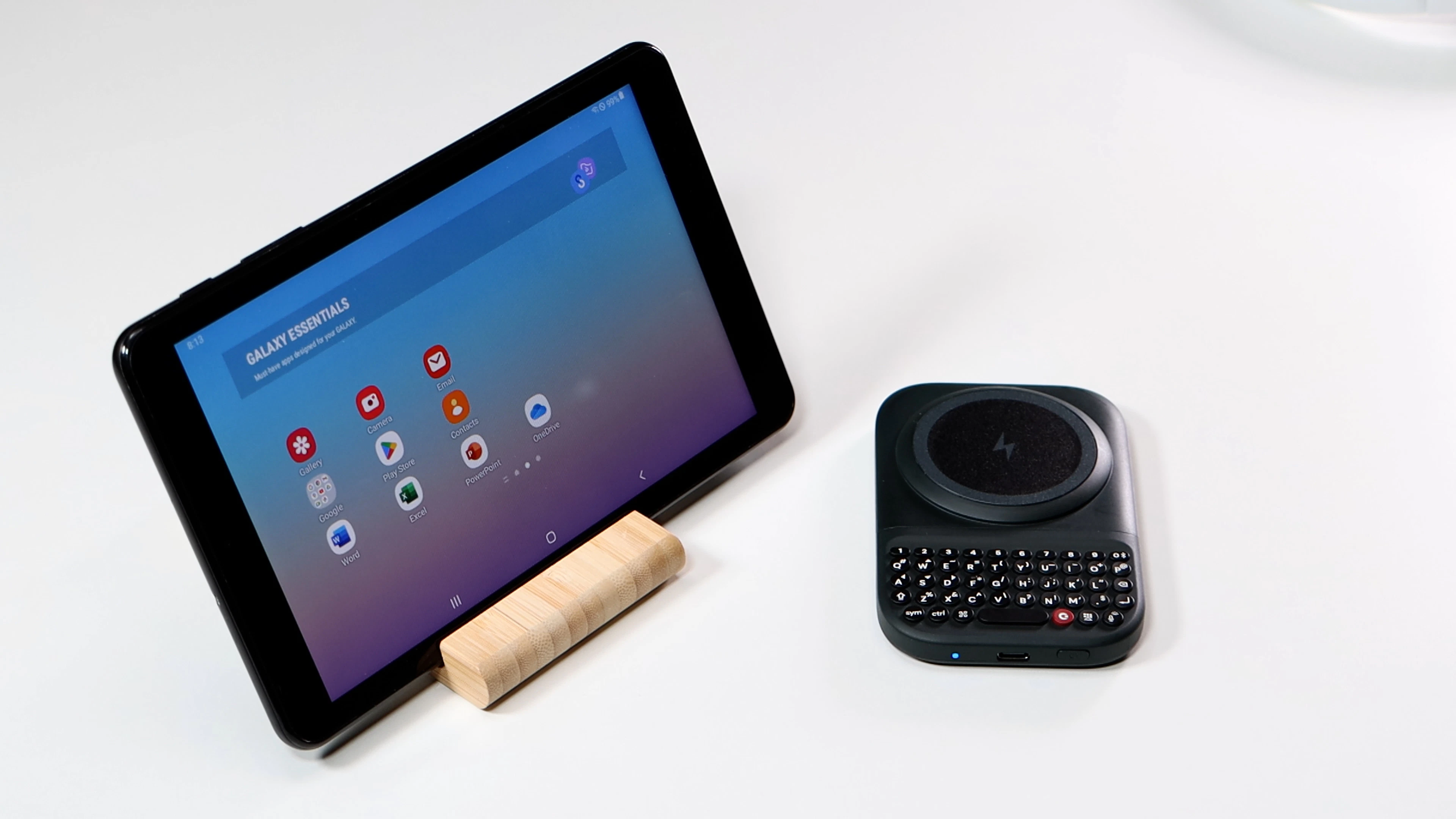 Using your Power Keyboard to type on your iPad or Android tablet is truly a delight. It gives you a fast and precise way to be productive without needing a keyboard case.
## Pairing Power Keyboard To A Tablet
There are many different brands of tablets, but depending on whether you have an iPad or an Android tablet the process generally mirrors the steps for pairing to a phone.
1. **Press and hold down** the **Power key** and then **press a number key** (1-9) to pair assign the new device to a specific number.
2. Open the **Bluetooth settings** on the tablet, **select Power Keyboard**, and follow the steps on screen to complete the pairing.
3. You can now easily type with your Power Keyboard on your tablet.
## Tablet Shortcuts
Depending on whether you have an iPad or an Android tablet, you'll be able to take advantage of many of the same shortcuts that users of [iPhone](https://docs.clicks.tech/knowledge-base/kb-power-keyboard-tips-iphone-keyboard-shortcuts) and [Android](https://docs.clicks.tech/knowledge-base/kb-power-keyboard-tips-android-keyboard-shortcuts) phones use.
Using your Power Keyboard to type on your iPad or Android tablet is truly a delight. It gives you a fast and precise way to be productive without needing a keyboard case.
## Pairing Power Keyboard To A Tablet
There are many different brands of tablets, but depending on whether you have an iPad or an Android tablet the process generally mirrors the steps for pairing to a phone.
1. **Press and hold down** the **Power key** and then **press a number key** (1-9) to pair assign the new device to a specific number.
2. Open the **Bluetooth settings** on the tablet, **select Power Keyboard**, and follow the steps on screen to complete the pairing.
3. You can now easily type with your Power Keyboard on your tablet.
## Tablet Shortcuts
Depending on whether you have an iPad or an Android tablet, you'll be able to take advantage of many of the same shortcuts that users of [iPhone](https://docs.clicks.tech/knowledge-base/kb-power-keyboard-tips-iphone-keyboard-shortcuts) and [Android](https://docs.clicks.tech/knowledge-base/kb-power-keyboard-tips-android-keyboard-shortcuts) phones use.