> ## Documentation Index
> Fetch the complete documentation index at: https://learn.clicks.tech/llms.txt
> Use this file to discover all available pages before exploring further.
# Keyboard backlight
The backlight on Power Keys is customizable both in **brightness** and **duration**.
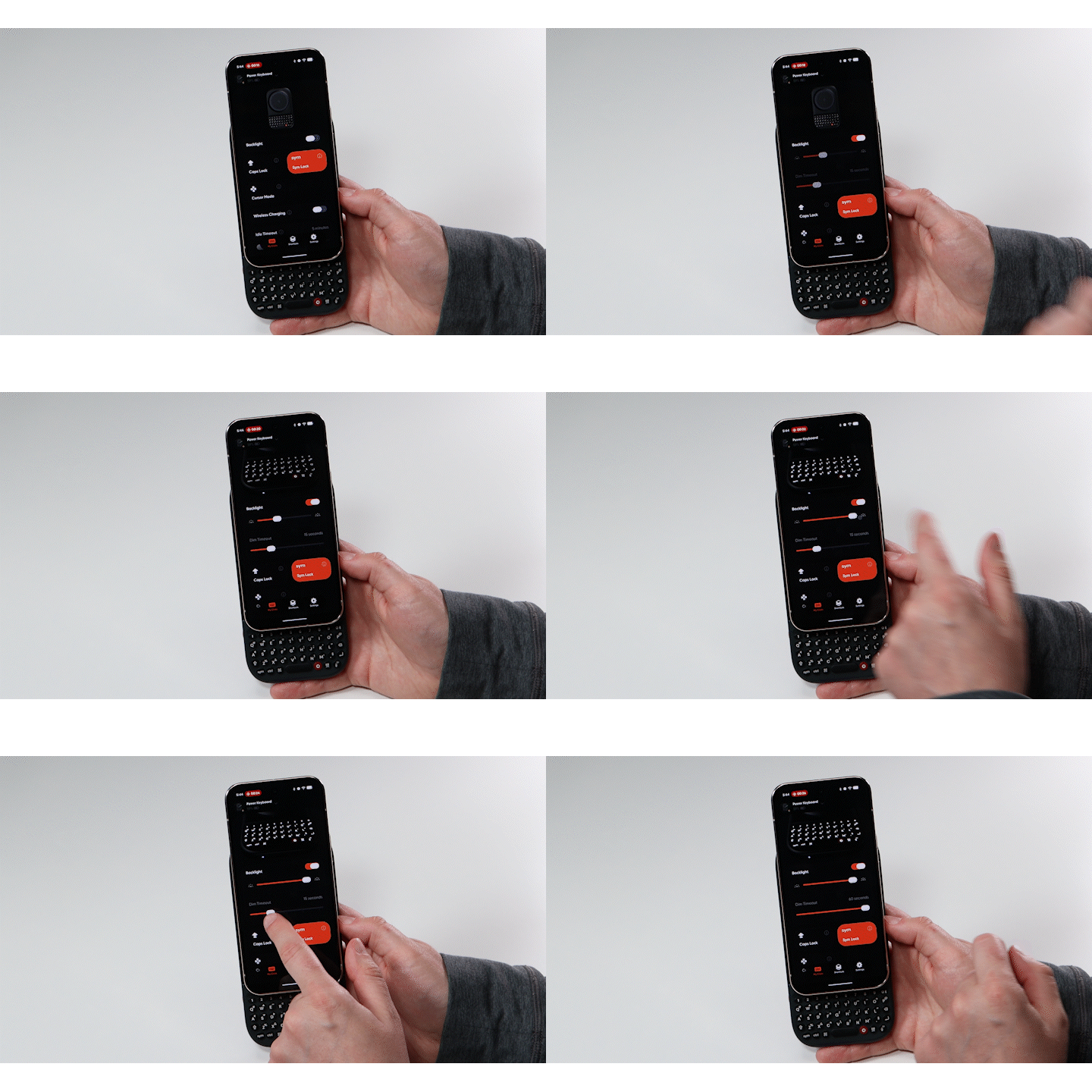
Using the Clicks App, you can easily adjust the backlight settings:
* Open the Clicks App
* Toggle on Backlight
* Adjust top slider (this is the brightness of your backlight)
* Adjust bottom slider (this is how many seconds before the backlight dims)
 The keyboard backlight can also be turned on or off with a keyboard shortcut.
Hold down the **Sym key** on Power Keys and press the **Microphone key**.
The keyboard backlight can also be turned on or off with a keyboard shortcut.
Hold down the **Sym key** on Power Keys and press the **Microphone key**.