> ## Documentation Index
> Fetch the complete documentation index at: https://learn.clicks.tech/llms.txt
> Use this file to discover all available pages before exploring further.
# Clicks App
The Clicks App is the best way to personalize the settings and manage the devices you’ve paired to your Power Keyboard.
 While many functions like pairing and switching between devices can be done without the use of the app, there are some key aspects of the Clicks App you’ll want to understand to get the most of your Power Keyboard.
## **Switch between Clicks Products**
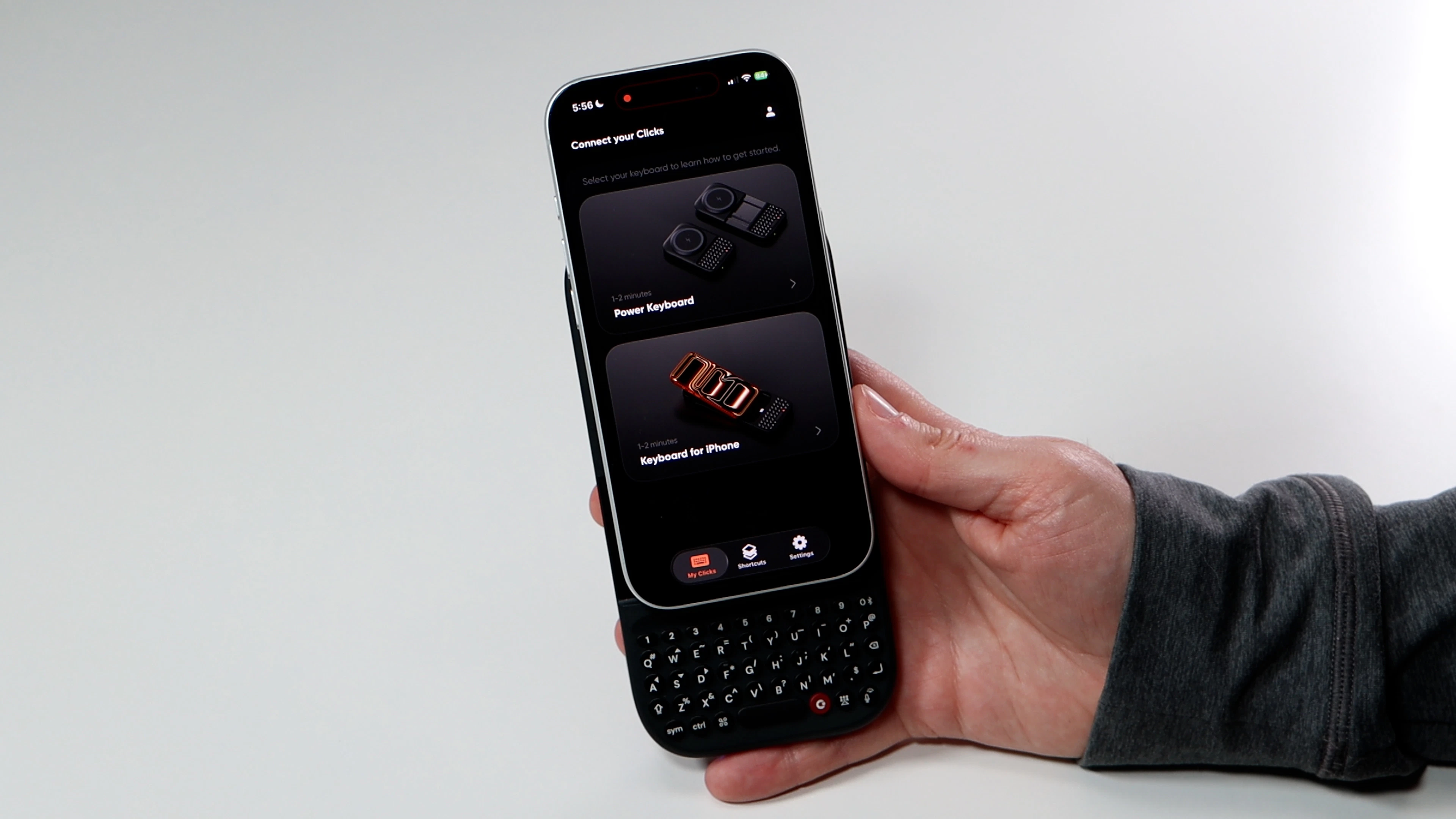
If you’re a user of Power Keyboard and a Clicks for iPhone/Android, you’ll be able to quickly switch between accessories to configure and customize.
While many functions like pairing and switching between devices can be done without the use of the app, there are some key aspects of the Clicks App you’ll want to understand to get the most of your Power Keyboard.
## **Switch between Clicks Products**
If you’re a user of Power Keyboard and a Clicks for iPhone/Android, you’ll be able to quickly switch between accessories to configure and customize.
 \
**Home Screen -** Once in the Power Keys section of the Clicks app you can quickly manage key functions right from the Home Screen.
\
**Home Screen -** Once in the Power Keys section of the Clicks app you can quickly manage key functions right from the Home Screen.
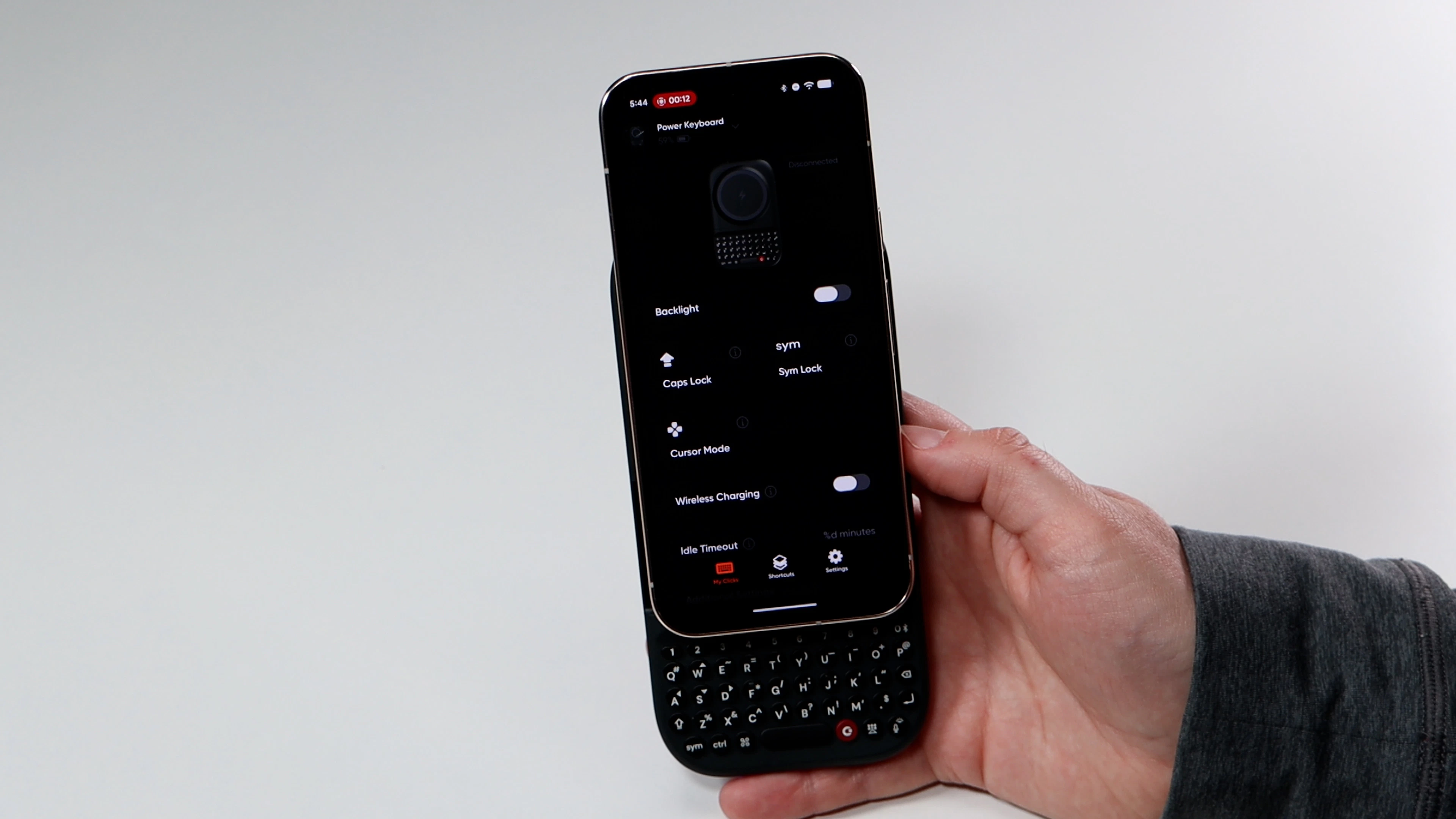 \
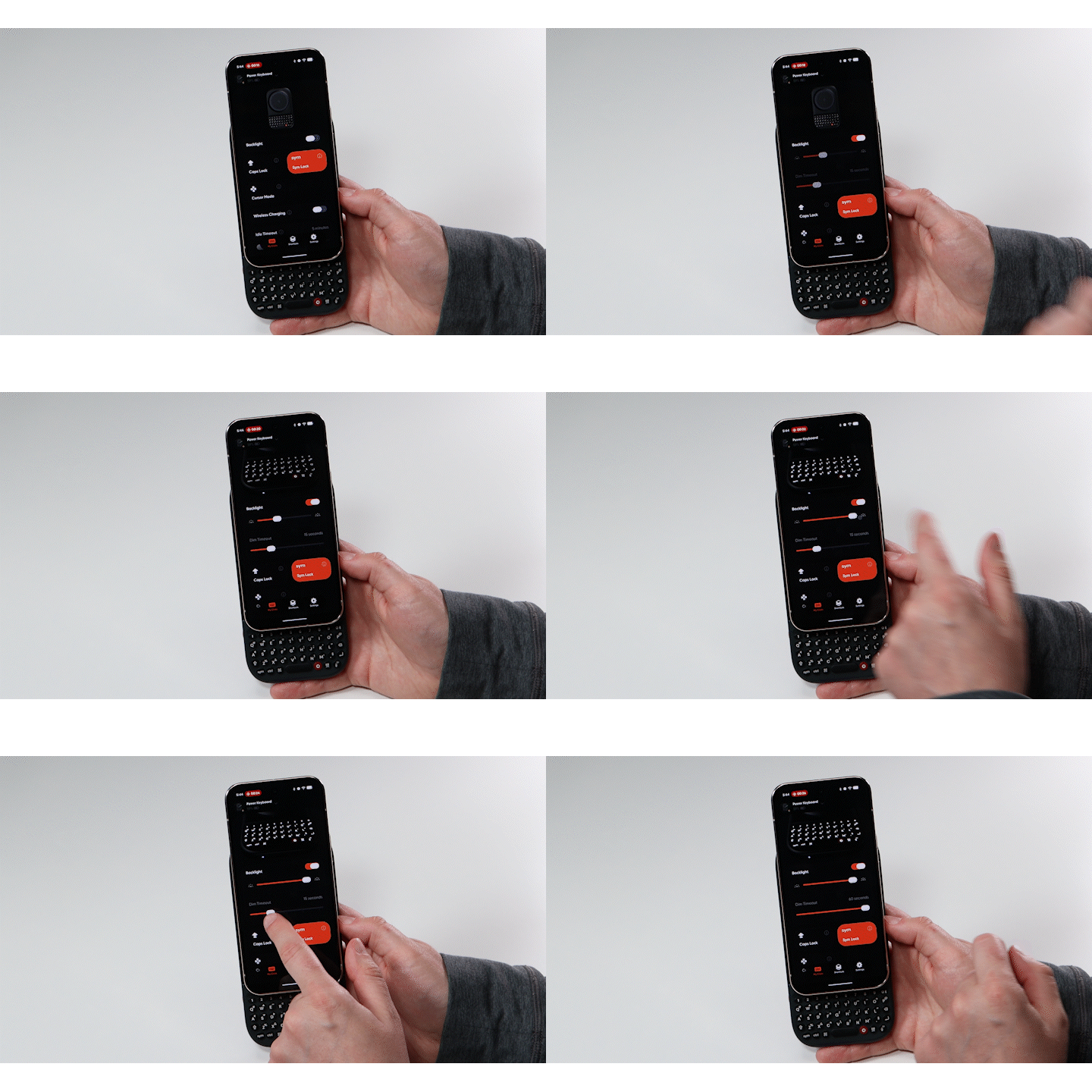
**Backlight** - Toggle this on to adjust the overall brightness of the backlit keys and the length of time before the lighting turns off.
\
**Backlight** - Toggle this on to adjust the overall brightness of the backlit keys and the length of time before the lighting turns off.
 \
**Caps Lock** - Toggle this on if you’d like to enable Caps Lock on your Power Keyboard by double clicking the Shift button. Click the Shift button again to exit Caps Lock.
\
**Sym Lock** - Double click the Symbol key (sym) to lock in the second function keys. Click the Symbol key again to exit this mode.
\
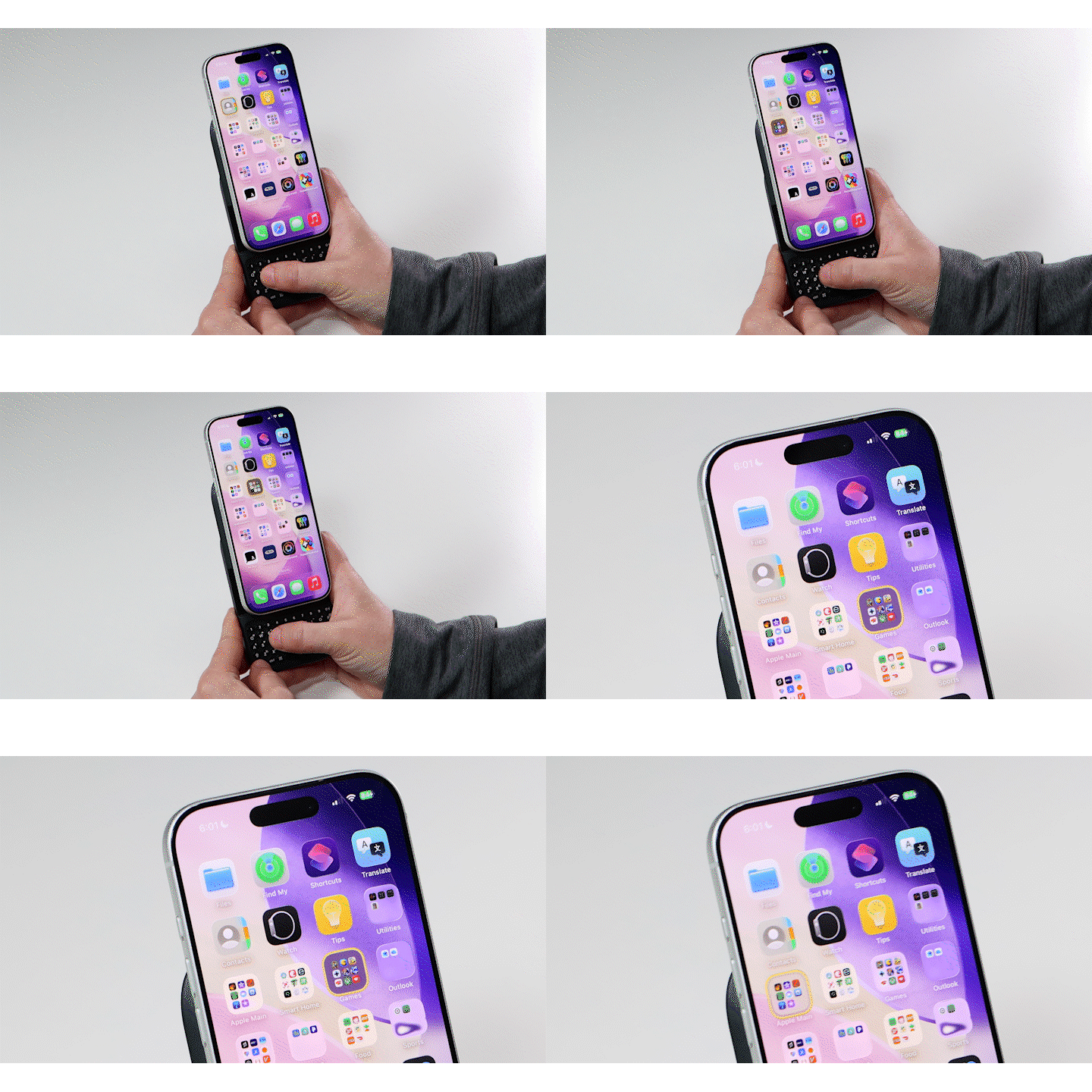
**Cursor Mode** - Press Symbol and Command to activate cursor mode. Enable this during instances when you want to use directional keys (WASD and IJKL) without having to press the Symbol button. Press Symbol and Command again to deactivate cursor mode.
\
**Caps Lock** - Toggle this on if you’d like to enable Caps Lock on your Power Keyboard by double clicking the Shift button. Click the Shift button again to exit Caps Lock.
\
**Sym Lock** - Double click the Symbol key (sym) to lock in the second function keys. Click the Symbol key again to exit this mode.
\
**Cursor Mode** - Press Symbol and Command to activate cursor mode. Enable this during instances when you want to use directional keys (WASD and IJKL) without having to press the Symbol button. Press Symbol and Command again to deactivate cursor mode.
 \
**Clicks Key + Tab -** This one is currently not available on my version of the app - will revisit.
\
**Battery Saving Mode -** Adjusts when your Power Keyboard cuts off connection to your smartphone to save battery. Press any button to wake and reconnect Power Keys.
**Wireless Charging**
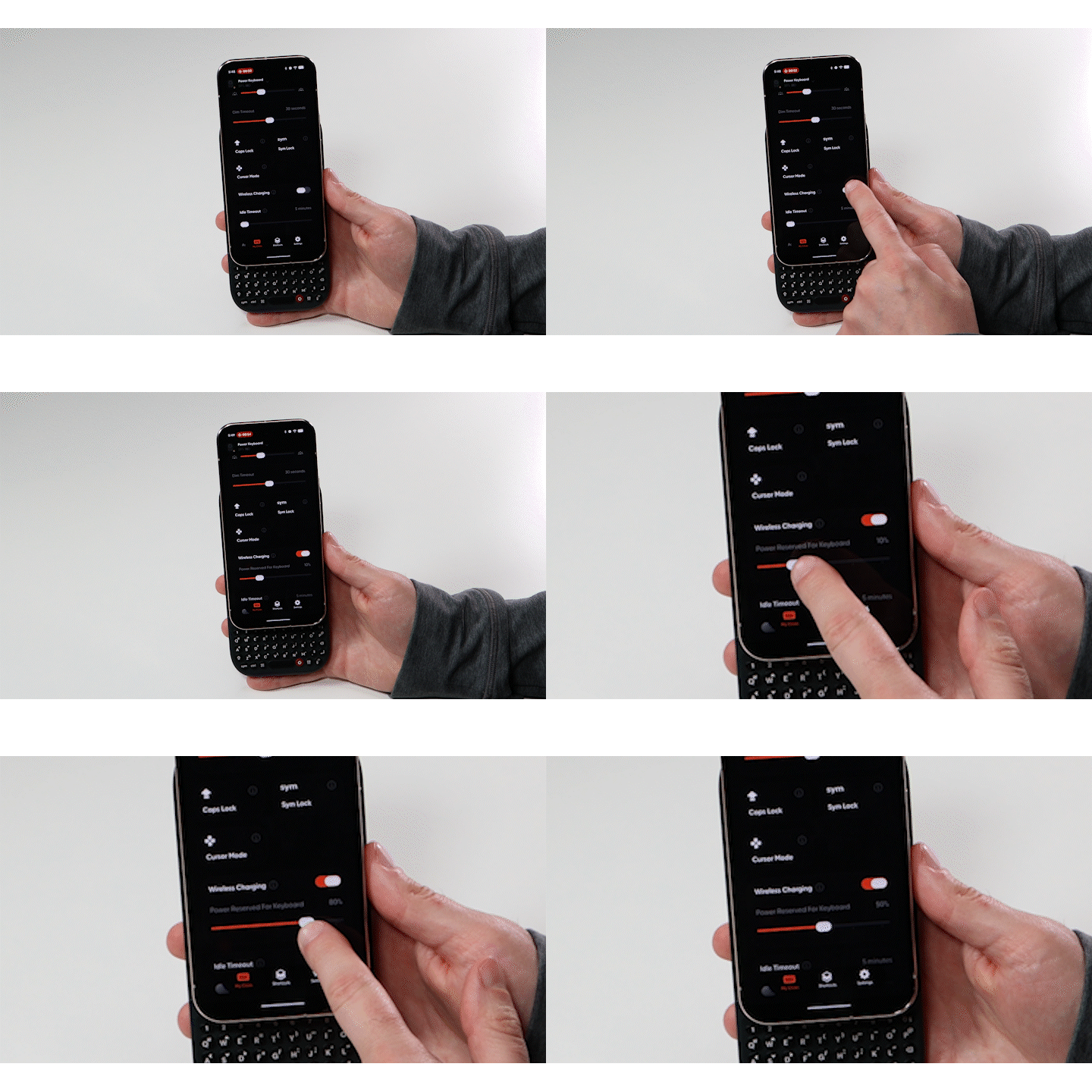
Toggle this tab on or off to enable/disable wireless charging
* When wireless charging is enabled, you can drag the slider to adjust how much of the Power Keyboard battery remains in "reserve" for the accessory. When the battery level hits your reserve number, wireless charging automatically turns off to preserve battery life for the Power [Keyboard.](http://keyboard.if/) If you don’t want to reserve any power for the keyboard, set the slider to 0.
* By default, **500 mAh of the keyboard’s battery** is held in reserve for your Power Keyboard. However, this reserve can be adjusted (all the way down to 0) using the Clicks app.
Wireless charging can also be turned on and off, allowing you to dedicate the full built-in battery on your Clicks Power Keyboard to the keyboard itself.
\
**Clicks Key + Tab -** This one is currently not available on my version of the app - will revisit.
\
**Battery Saving Mode -** Adjusts when your Power Keyboard cuts off connection to your smartphone to save battery. Press any button to wake and reconnect Power Keys.
**Wireless Charging**
Toggle this tab on or off to enable/disable wireless charging
* When wireless charging is enabled, you can drag the slider to adjust how much of the Power Keyboard battery remains in "reserve" for the accessory. When the battery level hits your reserve number, wireless charging automatically turns off to preserve battery life for the Power [Keyboard.](http://keyboard.if/) If you don’t want to reserve any power for the keyboard, set the slider to 0.
* By default, **500 mAh of the keyboard’s battery** is held in reserve for your Power Keyboard. However, this reserve can be adjusted (all the way down to 0) using the Clicks app.
Wireless charging can also be turned on and off, allowing you to dedicate the full built-in battery on your Clicks Power Keyboard to the keyboard itself.
 Scrolling further down the home page you can manage additional settings including:\\
* **Keyboard Layout** - Switch the keyboard layout to accommodate different language formats.
* **Currency Symbol** - Adjust the currency symbol from \$ to your local currency.
* **Backlight Shortcut** - Quickly turn on/off Backlight on Power Keys.
* **Soft Return** - Change the result of pressing the Return key to send vs. moving the cursor to a new line.
* **Display Keyboard Mode in Dynamic Island** - For iPhone users, the current settings of your Power Keyboard will be visible on your phone’s dynamic island.
**Paired Devices**
* See the complete list of paired devices and the slot they’re dedicated to
* Tap on the edit icon to change the name of any device
* Tap on the X to Clear a slot, removing a device
Scrolling further down the home page you can manage additional settings including:\\
* **Keyboard Layout** - Switch the keyboard layout to accommodate different language formats.
* **Currency Symbol** - Adjust the currency symbol from \$ to your local currency.
* **Backlight Shortcut** - Quickly turn on/off Backlight on Power Keys.
* **Soft Return** - Change the result of pressing the Return key to send vs. moving the cursor to a new line.
* **Display Keyboard Mode in Dynamic Island** - For iPhone users, the current settings of your Power Keyboard will be visible on your phone’s dynamic island.
**Paired Devices**
* See the complete list of paired devices and the slot they’re dedicated to
* Tap on the edit icon to change the name of any device
* Tap on the X to Clear a slot, removing a device