> ## Documentation Index
> Fetch the complete documentation index at: https://learn.clicks.tech/llms.txt
> Use this file to discover all available pages before exploring further.
# Apple Vision Pro tips
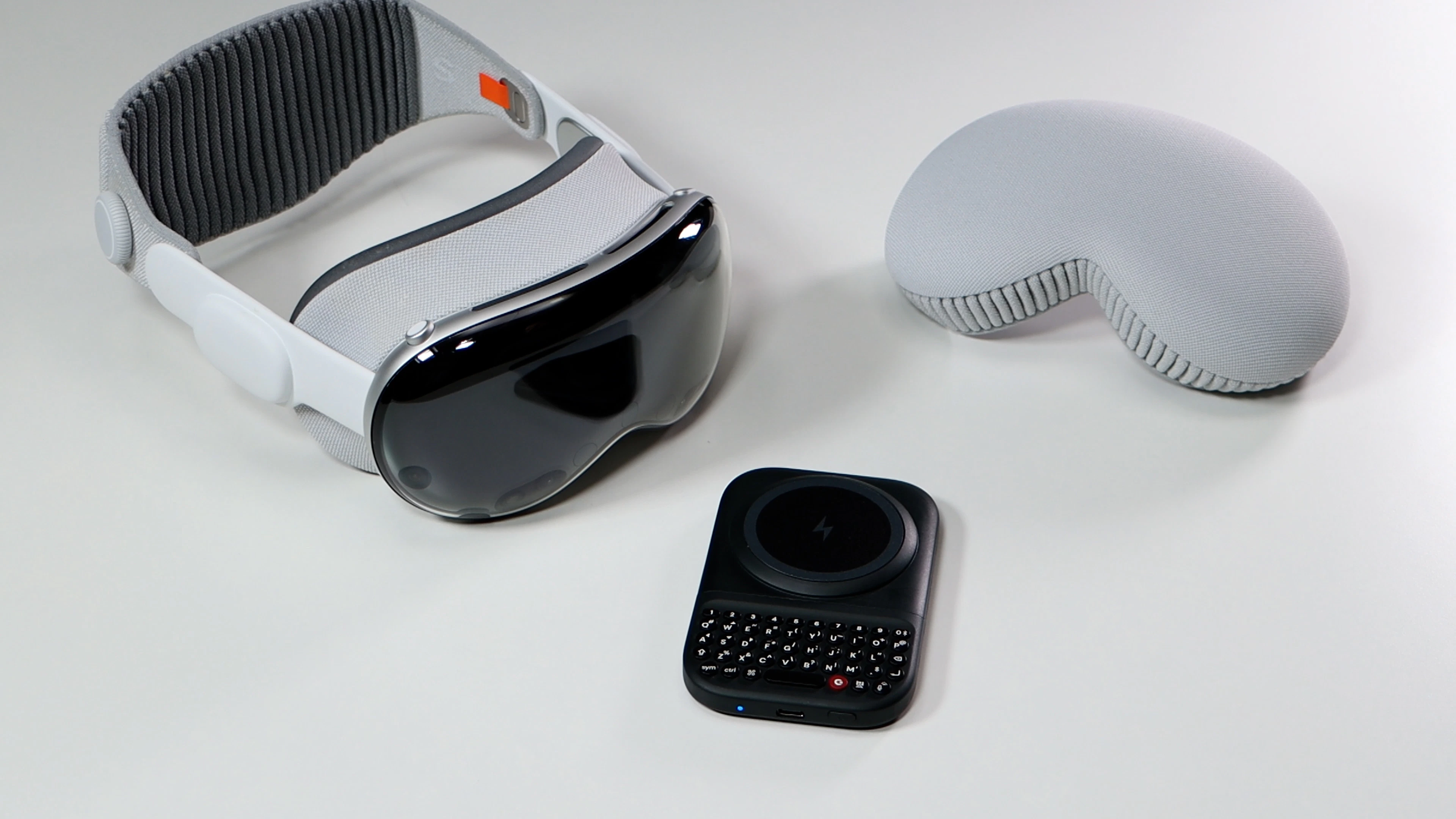 Many of the same shortcuts you may be familiar with for iOS work with Vision Pro, but there are also a few extras.
* **Search:** Command + Space Bar
* **Select All:** Command + A
* **Copy Text:** Command + C
* **Go to Home View:** Command + H
* **Paste Text:** Command + V
* **Cut Text:** Command + X
* **Undo Action:** Command + Z
* **Activate Selected Item:** Space bar
There are also some app-specific shortcuts that may be helpful.
**Safari:**
* **Open new browser window:** Command + N
* **Search in Safari:** Command + L
* **Save Webpage to Device:** Command + S
* **Open New Browsing Tab:** Command + T
* **View Search History:** Command + Y
**Apple TV:**
Media Playback works the same on Vision Pro when using the built-in Clicks Power Keyboard shortcuts. However, in Spatial video, you will not see a visual confirmation (example volume slider moving up and down), even though the function is happening.
**Media Playback**
* SYM + 1 - Escape
* SYM + 2 - Volume Up
* SYM + 3 - Volume Down
* SYM + 4 - Mute
* SYM + 5 - Play / Pause
* SYM + 6 - Next track
* SYM + 7 - Previous track
* SYM + 8 - Page Up
* SYM + 9 - Page Down
Many of the same shortcuts you may be familiar with for iOS work with Vision Pro, but there are also a few extras.
* **Search:** Command + Space Bar
* **Select All:** Command + A
* **Copy Text:** Command + C
* **Go to Home View:** Command + H
* **Paste Text:** Command + V
* **Cut Text:** Command + X
* **Undo Action:** Command + Z
* **Activate Selected Item:** Space bar
There are also some app-specific shortcuts that may be helpful.
**Safari:**
* **Open new browser window:** Command + N
* **Search in Safari:** Command + L
* **Save Webpage to Device:** Command + S
* **Open New Browsing Tab:** Command + T
* **View Search History:** Command + Y
**Apple TV:**
Media Playback works the same on Vision Pro when using the built-in Clicks Power Keyboard shortcuts. However, in Spatial video, you will not see a visual confirmation (example volume slider moving up and down), even though the function is happening.
**Media Playback**
* SYM + 1 - Escape
* SYM + 2 - Volume Up
* SYM + 3 - Volume Down
* SYM + 4 - Mute
* SYM + 5 - Play / Pause
* SYM + 6 - Next track
* SYM + 7 - Previous track
* SYM + 8 - Page Up
* SYM + 9 - Page Down