> ## Documentation Index
> Fetch the complete documentation index at: https://learn.clicks.tech/llms.txt
> Use this file to discover all available pages before exploring further.
# Pairing additional devices
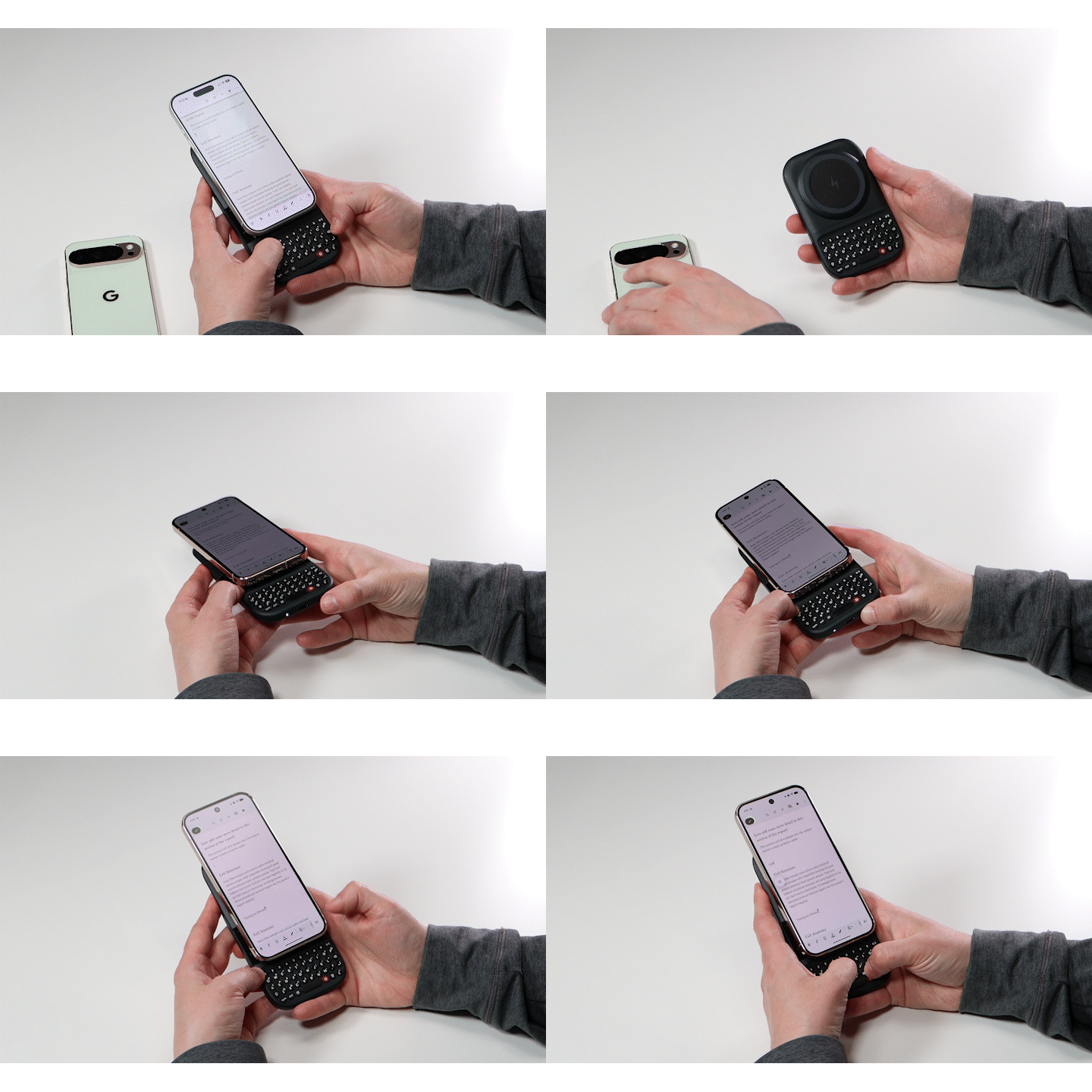
Clicks Power Keyboard allows you to connect and switch between n**ine different** devices.
 ## To pair an additional device:
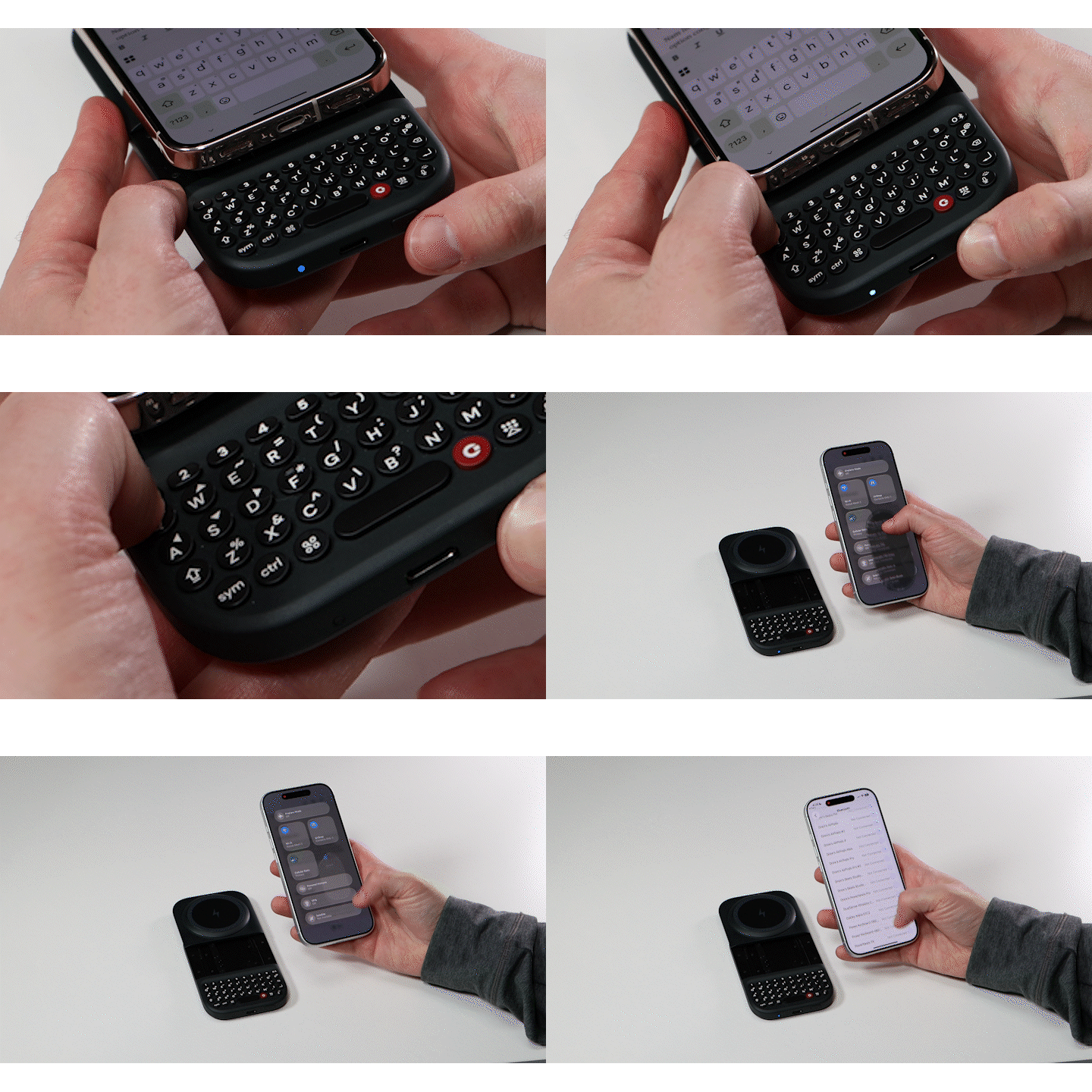
1. **Press and hold down** the **Power key** and then **press a number key** (1-9) to pair assign the new device to a specific number.
2. Open the **Bluetooth settings** in the new device you’re looking to pair, **select Power Keyboard**, and follow the steps on screen to complete the pairing.
3. You can now easily [**switch between**](https://docs.clicks.tech/knowledge-base/kb-power-keyboard-getting-started-switching-between-devices) two phones, a tablet, a headset, smart TV or other devices you use regularly.
## To pair an additional device:
1. **Press and hold down** the **Power key** and then **press a number key** (1-9) to pair assign the new device to a specific number.
2. Open the **Bluetooth settings** in the new device you’re looking to pair, **select Power Keyboard**, and follow the steps on screen to complete the pairing.
3. You can now easily [**switch between**](https://docs.clicks.tech/knowledge-base/kb-power-keyboard-getting-started-switching-between-devices) two phones, a tablet, a headset, smart TV or other devices you use regularly.