> ## Documentation Index
> Fetch the complete documentation index at: https://learn.clicks.tech/llms.txt
> Use this file to discover all available pages before exploring further.
# Connecting your first device
As soon as you Power on Clicks Power Keyboard for the first time, it will automatically go into **pairing mode** (blue light flashing).
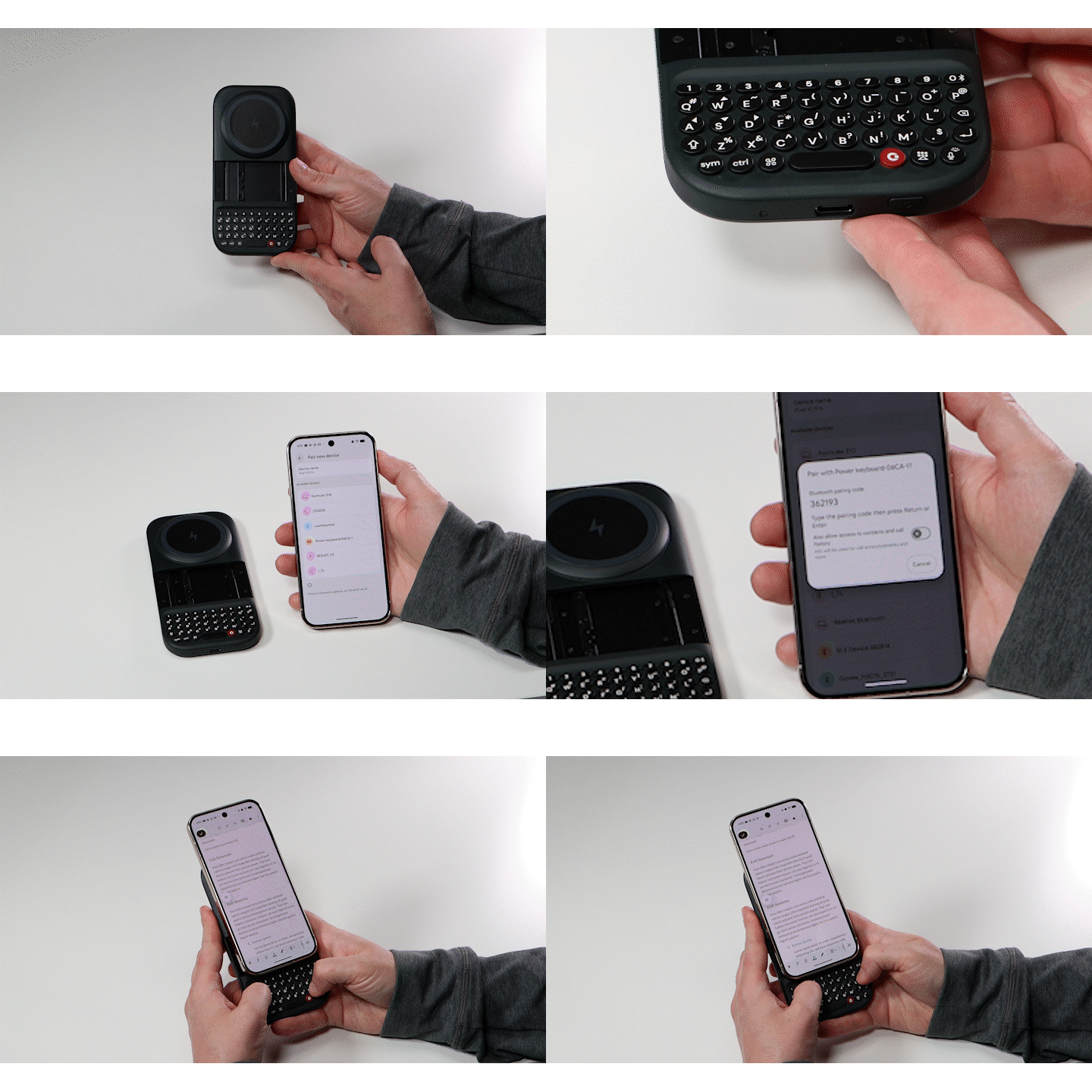 1. Ensure you **press and hold** the **power key** to turn on your Power Keyboard.
2. **Slide** the keyboard out to initiate **pairing mode** (a blue light will begin pulsing).
3. **Open** the **Bluetooth settings** on your device (smartphone, tablet, etc).
4. **Select** '**Clicks Power Keyboard-1'** from the listed devices.
5. If prompted, **allow necessary permissions** to finishing pairing your Power Keyboard. You may be asked to **input a numerical code** to finalize the pairing.
Once your device is paired, you'll noticed the pulsing blue light is now a solid blue.
The Clicks Power Keyboard connects via Bluetooth (BLE 5.4). This eliminates the need for physical port alignment, making it compatible with everything from standard smartphones to tablets, VR headsets, smart TVs and streaming boxes, and more.
1. Ensure you **press and hold** the **power key** to turn on your Power Keyboard.
2. **Slide** the keyboard out to initiate **pairing mode** (a blue light will begin pulsing).
3. **Open** the **Bluetooth settings** on your device (smartphone, tablet, etc).
4. **Select** '**Clicks Power Keyboard-1'** from the listed devices.
5. If prompted, **allow necessary permissions** to finishing pairing your Power Keyboard. You may be asked to **input a numerical code** to finalize the pairing.
Once your device is paired, you'll noticed the pulsing blue light is now a solid blue.
The Clicks Power Keyboard connects via Bluetooth (BLE 5.4). This eliminates the need for physical port alignment, making it compatible with everything from standard smartphones to tablets, VR headsets, smart TVs and streaming boxes, and more.