> ## Documentation Index
> Fetch the complete documentation index at: https://learn.clicks.tech/llms.txt
> Use this file to discover all available pages before exploring further.
# Clearing paired devices
If you want to remove (or **clear**) a device paired to a specific channel, you can easily erase it and make the channel available for a new device.
You can clear a paired device in one of two ways:
* **Keyboard Shortcut**
* **Clicks App**
## Option 1: Keyboard Shortcut
### Step 1: Connect to the Channel
Ensure you are actively connected to the channel you want to clear.
### Step 2: Clear the Channel
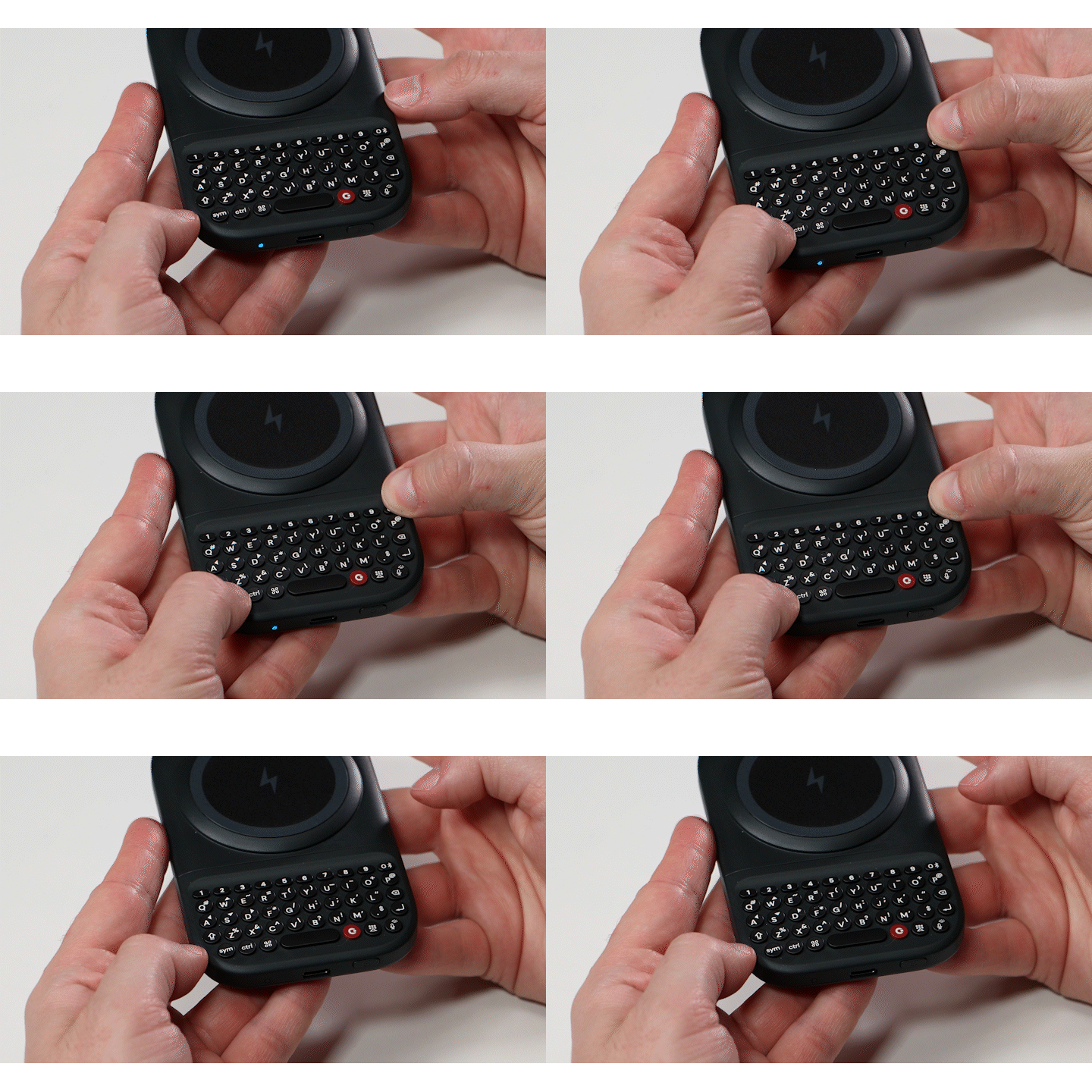
Hold down the **SYM** key and press **0**.
### Result
The selected channel is now cleared and available to pair with a new device.
 ## Option 2: Using the Clicks App
### Step 1: Connect to the Channel
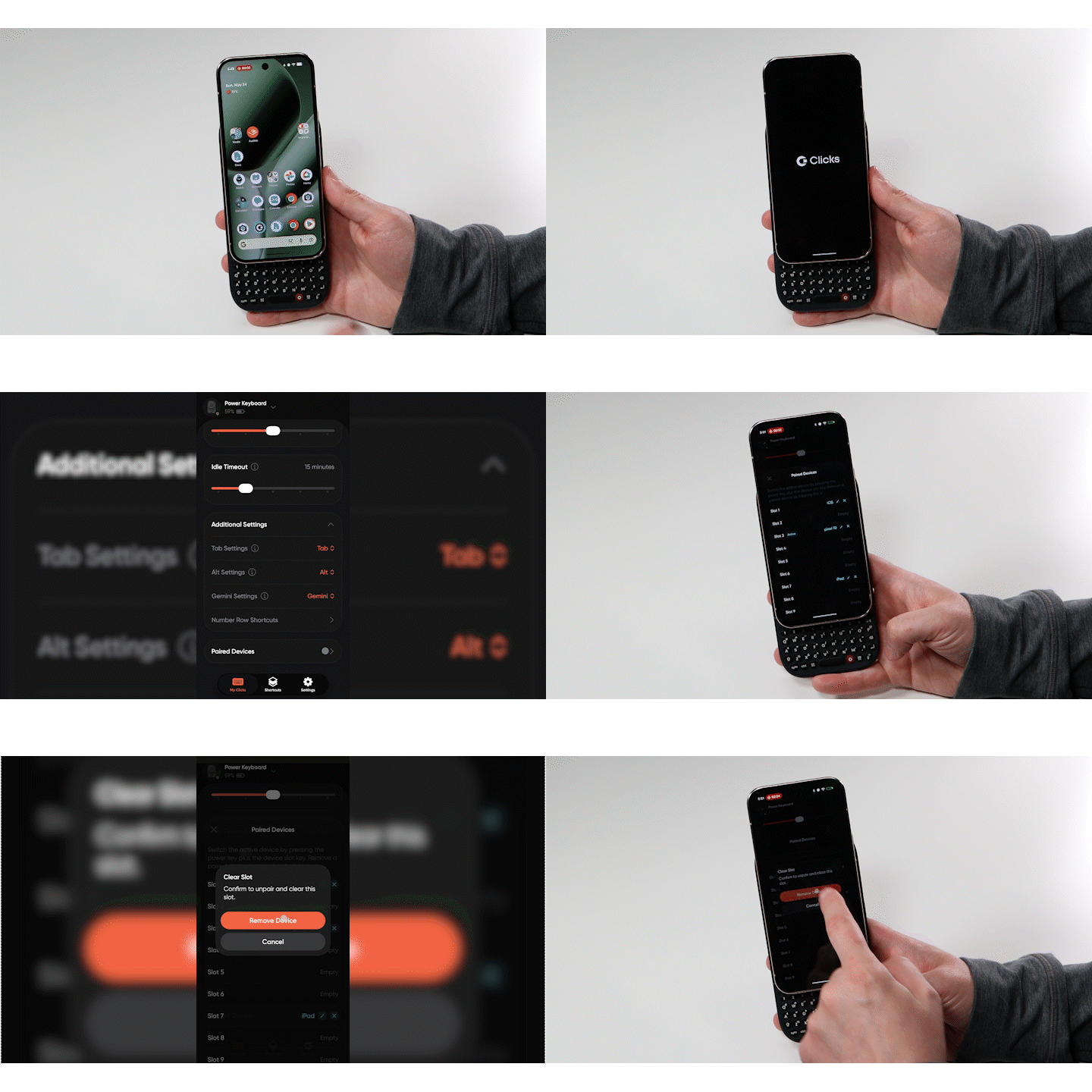
Connect to the channel you want to clear by holding the **Power** key and pressing the assigned number key (**1–9**).
### Step 2: Open the Clicks App
Open the **Clicks App** and navigate to **My Clicks**.
### Step 3: Open Paired Devices
Scroll down to the **Paired Devices** section.
### Step 4: Remove the Device
Select the **X** next to the device slot you want to clear.
### Result
The selected pairing slot is now available for a new device.
## Option 2: Using the Clicks App
### Step 1: Connect to the Channel
Connect to the channel you want to clear by holding the **Power** key and pressing the assigned number key (**1–9**).
### Step 2: Open the Clicks App
Open the **Clicks App** and navigate to **My Clicks**.
### Step 3: Open Paired Devices
Scroll down to the **Paired Devices** section.
### Step 4: Remove the Device
Select the **X** next to the device slot you want to clear.
### Result
The selected pairing slot is now available for a new device.