> ## Documentation Index
> Fetch the complete documentation index at: https://learn.clicks.tech/llms.txt
> Use this file to discover all available pages before exploring further.
# Built-in shortcuts
Your Clicks Power Keyboard comes with built-in shortcuts that will help you navigate common tasks.
 ## **Media Playback**
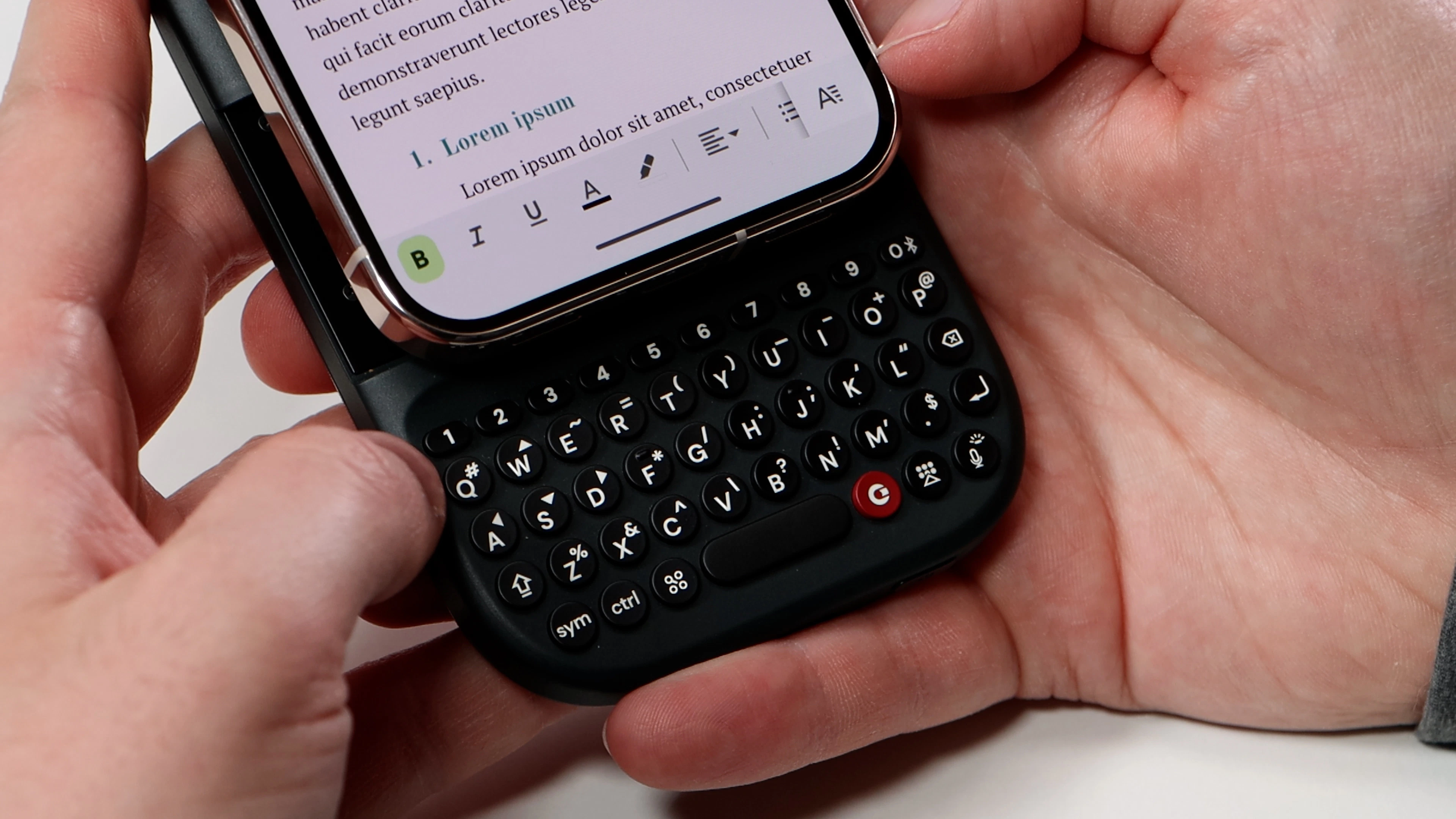
There are several functions you can control when your paired device is playing music or videos. This can be especially helpful when using your Power Keyboard as an input device for your smart TV. These built-in shortcuts are accessed by holding down the **sym** key and pressing a **number** key
* SYM + 1 - Escape
* SYM + 2 - Volume Up
* SYM + 3 - Volume Down
* SYM + 4 - Mute
* SYM + 5 - Play / Pause
* SYM + 6 - Next track
* SYM + 7 - Previous track
* SYM + 8 - Page Up
* SYM + 9 - Page Down
\
**Note:** these media playback shortcuts can be edited in the Clicks App
## Navigation
For quick navigation, hold down the **Sym key** and **press** W (up), A (left), D (right), or S (down) to navigate through menus and lists using Power Keyboard.
## **Media Playback**
There are several functions you can control when your paired device is playing music or videos. This can be especially helpful when using your Power Keyboard as an input device for your smart TV. These built-in shortcuts are accessed by holding down the **sym** key and pressing a **number** key
* SYM + 1 - Escape
* SYM + 2 - Volume Up
* SYM + 3 - Volume Down
* SYM + 4 - Mute
* SYM + 5 - Play / Pause
* SYM + 6 - Next track
* SYM + 7 - Previous track
* SYM + 8 - Page Up
* SYM + 9 - Page Down
\
**Note:** these media playback shortcuts can be edited in the Clicks App
## Navigation
For quick navigation, hold down the **Sym key** and **press** W (up), A (left), D (right), or S (down) to navigate through menus and lists using Power Keyboard.
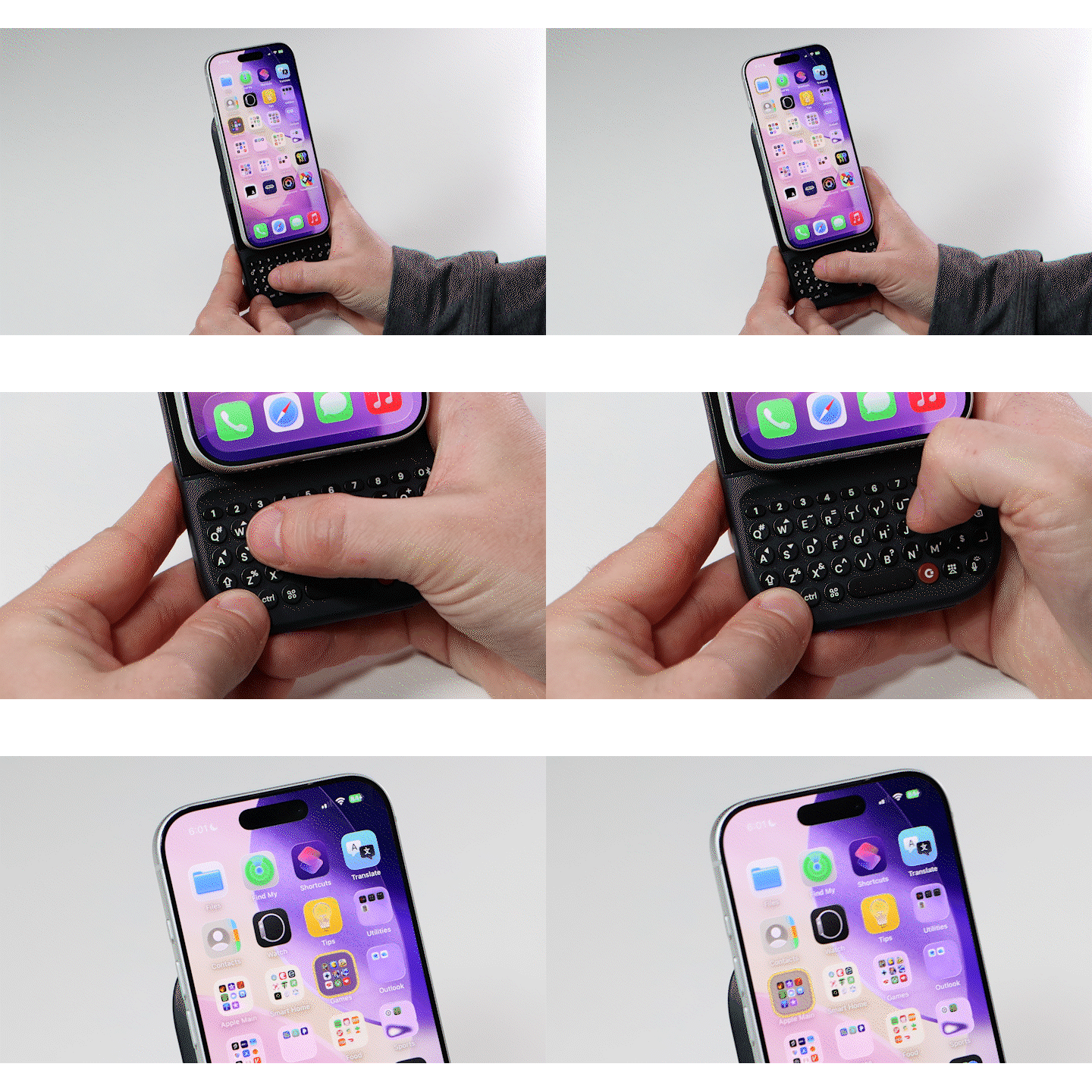 These specific letter keys have arrows built in above each letter, showing you which direction you can access by pressing each key.